Version 1.39 Preview · versionCode 41 · Android 8.0 or later · about 201 MB. This beta is distributed directly from this official page, not Google Play.
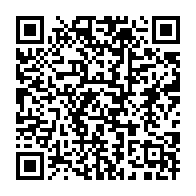
Scan this QR code on another device. The QR code and download URL stay the same when the version changes.
Check the address first: use the primary site software.cblh.software (fallback: software.jly.me), and the file name must end in davar-church-android-preview-latest.apk. If Android reports a different signature, stop and contact Support. Normally, keep Google Play Protect on.
Tap the download link or scan the QR code. The file is davar-church-android-preview-latest.apk; check the version shown above for the current release.
Open the completed download from your browser, notification, or Files/My Files Downloads folder.
If Android stops the installation with "For your security, your phone currently isn't allowed to install unknown apps from this source," tap Settings.
Temporarily turn on Allow from this source for the browser or Files app you used.
Go back, tap Install, then open Davar Church App.
Return to Settings → Apps → Special app access → Install unknown apps and turn Allow from this source off again.
If Support tells you to pause Google Play Protect (Google Pixel)
If “Allow from this source” is enough to install the app, you do not need to turn off Play Protect. If the message says the app is harmful, unsafe, or malware, or that the developer cannot be verified, do not turn off Play Protect. Stop and send the warning screen to Support. Use the steps below only after Support verifies the SHA-256 and signing certificate of the currently published APK and specifically tells you to pause Play Protect.
Open the Google Play Store and tap your profile icon at the top right.
Open Play Protect → Settings (gear) at the top right.
Turn off Scan apps with Play Protect and accept the confirmation shown.
Return to the same APK and install it.
Immediately after installation, return to the same screen and turn Scan apps with Play Protect back on.
Important: Do not download or install any other app while Play Protect is off. When Android Advanced Protection is enabled, installation and updates from unknown sources are blocked and Play Protect cannot be turned off. Do not disable Advanced Protection just to install the app—contact Support. A message saying the developer cannot be verified comes from the separate Android developer verification system and is not fixed by turning off Play Protect. References: Get apps from outside Google Play on Pixel / Google Play Protect / Android Advanced Protection / Android developer verification
Update
Download the newer APK and install it over the existing app. Do not uninstall first; uninstalling may remove local app data.
Troubleshooting
"App not installed as package appears to be invalid."
Keep the existing app and its local data. Download the APK again from the official link above, wait for the download to finish and try updating over the installed app. Version 1.39 uses the same signing certificate as the earlier official previews. If the error continues or Android reports a signature mismatch, stop and contact Support with the exact message and your installed version. Do not uninstall or clear app data as a troubleshooting step.
What's new in 1.39
Image of God reading controls are grouped in one options menu: Continuous, Original pages, Split, and Read aloud.
A Home shortcut sits beside the Bible icon. Sources and licenses are available from the Bible menu.
 Temporarily turn on Allow from this source for the browser or Files app you used.
