New manual: See the illustrated iPhone User Manual for the latest menu-by-menu instructions. This page remains as a compatibility summary for its established URL.
Start with the menu button at the upper left. Most sections are public and need no sign-in. In Version 1.17, open Settings → Account and sign in once for member tools; the same account session is used throughout the app.
Current version: Version 1.22 / build 257 is public. See the version history for the new features.
1. Find a feature
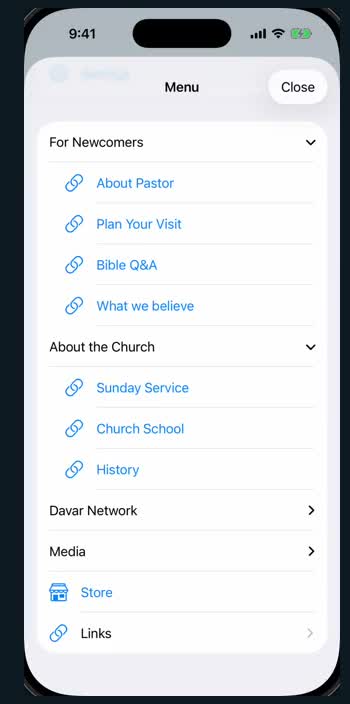
Open the menu
Open Davar Church App.
Tap the three horizontal lines at the upper left.
Tap a row with a blue arrow to open that group.
Tap the feature you want. Tap Close to leave the menu.
The menu includes Home, Memory Verse, Bible AI, Bookmarks, Settings, newcomer information, Church information, Davar Network, Media, Store, and Links. Church administrators may add new pages below these built-in items.
Open the Cornelius Fellowship page
Tap the three horizontal lines at the upper left.
Tap Media to expand that group.
Tap Cornelius Fellowship, immediately below Live Streaming.
The messages.davarkg.com sign-in page opens inside the app. Enter the page password supplied by the Church. After successful sign-in, the page redirects to /cornelius-meeting-ondemand/.
Remember Me is on by default. It keeps only the website's WebKit cookie/session; the app does not read or save the page username or password. Signing out from the app's Settings deletes cookies for this Cornelius website and ends that web session.
Use the back button at the upper left to return. To refresh the content, use the reload button at the upper right or pull the page downward.
If the page cannot load, check the internet connection and tap Retry.
2. Upload a Verse Card or Blogger post
Open the gallery
Sign in from Settings → Account with a member, operator, or administrator account.
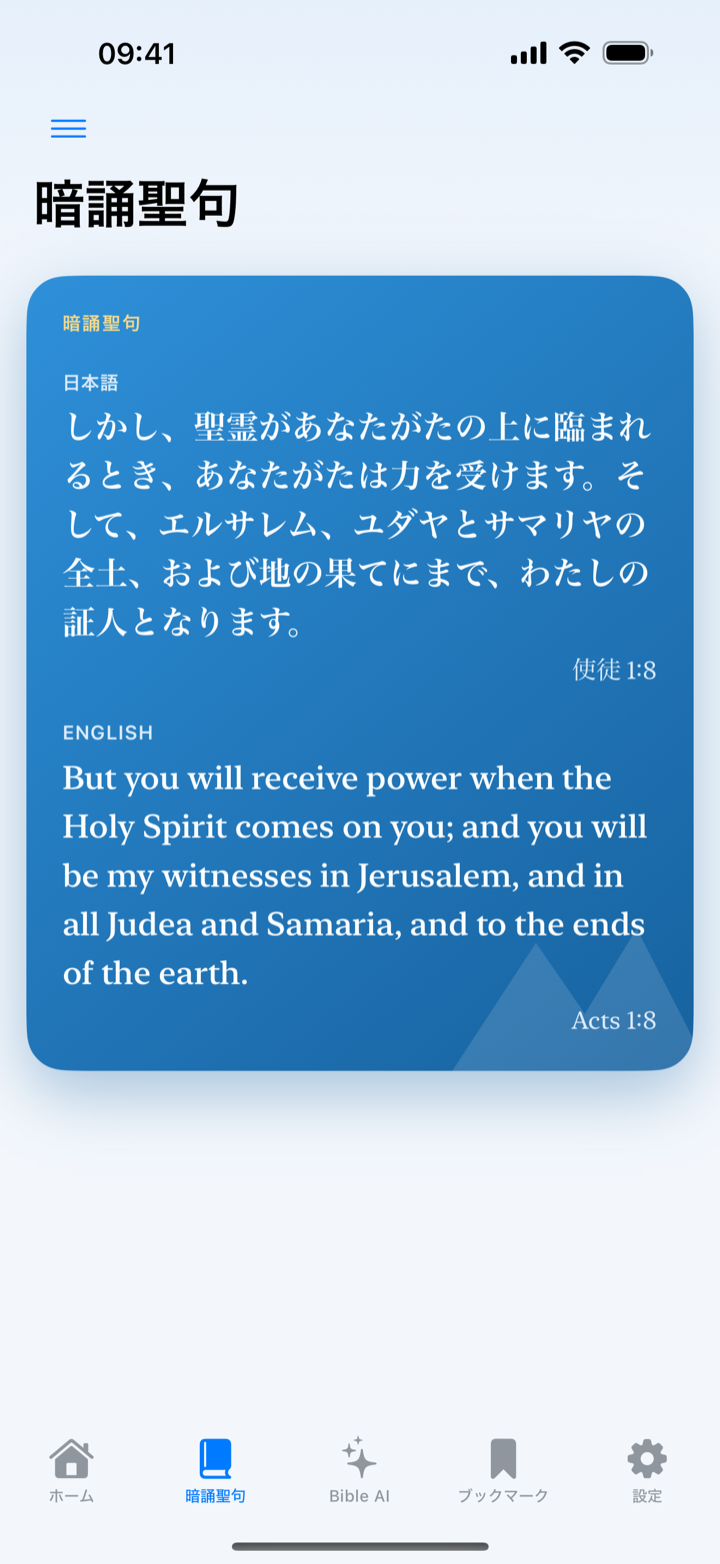
Tap Memory Verse in the bottom bar or menu.
Tap View Cards below the weekly verse.
In the gallery, tap the upload button at the upper right.
Tap Choose or Change Photo and select one image.
Enter the Blogger title and optional public comment, then select one or more Blogger labels. The labels from your preceding successful post are selected initially.
Keep みことばカード selected when this post belongs in the app gallery. A post without that exact label is still published to Blogger, but is not displayed in the app gallery.
Tap Upload once. The server stores the card and returns completion promptly; Blogger-owned image replacement continues in the background. You may then edit the title, comment, or labels without waiting for that replacement.
Before uploading: use a completed Verse Card image that you are allowed to share. Check names, faces, handwriting, addresses, school information, and anything else that should stay private. The image limit is 10 MB.
3. Upload Church photos and videos
Sign in from Settings → Account with a member, operator, or administrator account.
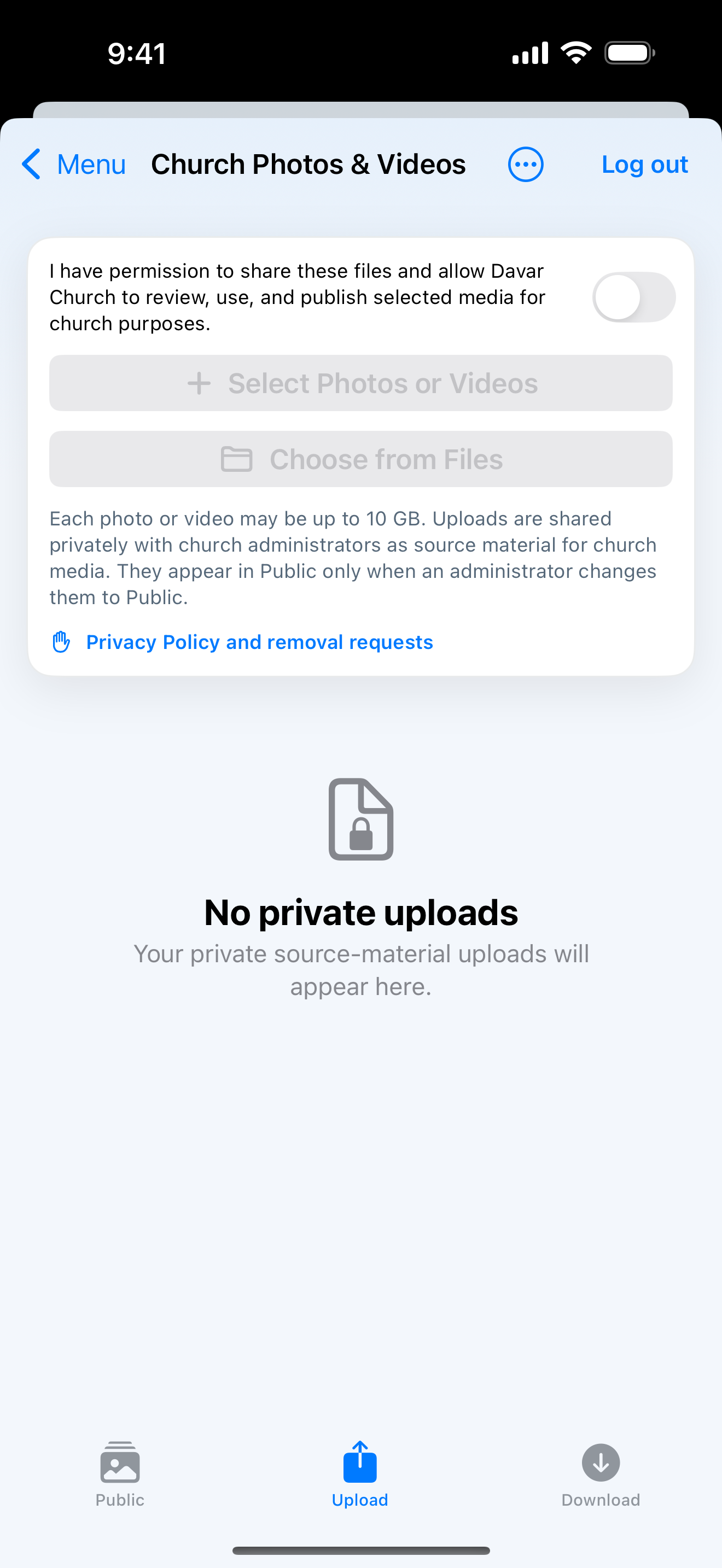
Open Menu → Media → Church Photos & Videos, or the correct event gallery, then open Upload.
Read and accept the sharing and immediate-publication notice only if every selected item is appropriate for Church use.
Choose Photos, Videos, Files, or a supported public Cloud URL, including a public Dropbox or OneDrive copied link. Device selection supports up to 500 items; a server-side Cloud share may contain up to 2,000 items. Each item may be up to 10 GiB.
Start the upload. Keep the app open until all items are placed in the background queue. Closing the sheet does not cancel work already queued.
The app sends the full batch, retries eligible failures, and then shows only items that still failed.
Open the Public gallery and confirm the finished upload and its event tag.
Beginner video: App Store to photo upload (about 1:57).
Permission matters: confirm permission for people shown, especially children, worship or prayer, private conversations, name badges, addresses, and documents. Contact Support to request removal.
4. Place and review an order
Open the current order from the app menu.
Enter your name and email address in the white fields. Values from the last order on this app session are used as initial values.
Select each item and use − / + to set the visible quantity. Add an optional comment, then review the deadline in your device time and the original Los Angeles time.
Tap Review order. Check the name, email, items, quantities, and comment; go back to edit, or tap Place this order once.
Confirm the checkmark on the open-order card and the saved entry in Order History. While the order remains open, the same app session may edit or cancel its submission. Closed orders are read-only.
5. Bible features and how to use them
Public version 1.22:Japanese Freedom Bible (Draft) is available for reading, search, Gospel Parallels, Words of Jesus, and Japanese on-device read-aloud. This public-domain eBible.org draft (2026-08-19) preserves its own verse numbering and gaps; source notes and unnumbered Psalm headings are omitted. Read the instructions and source details.
Read and study
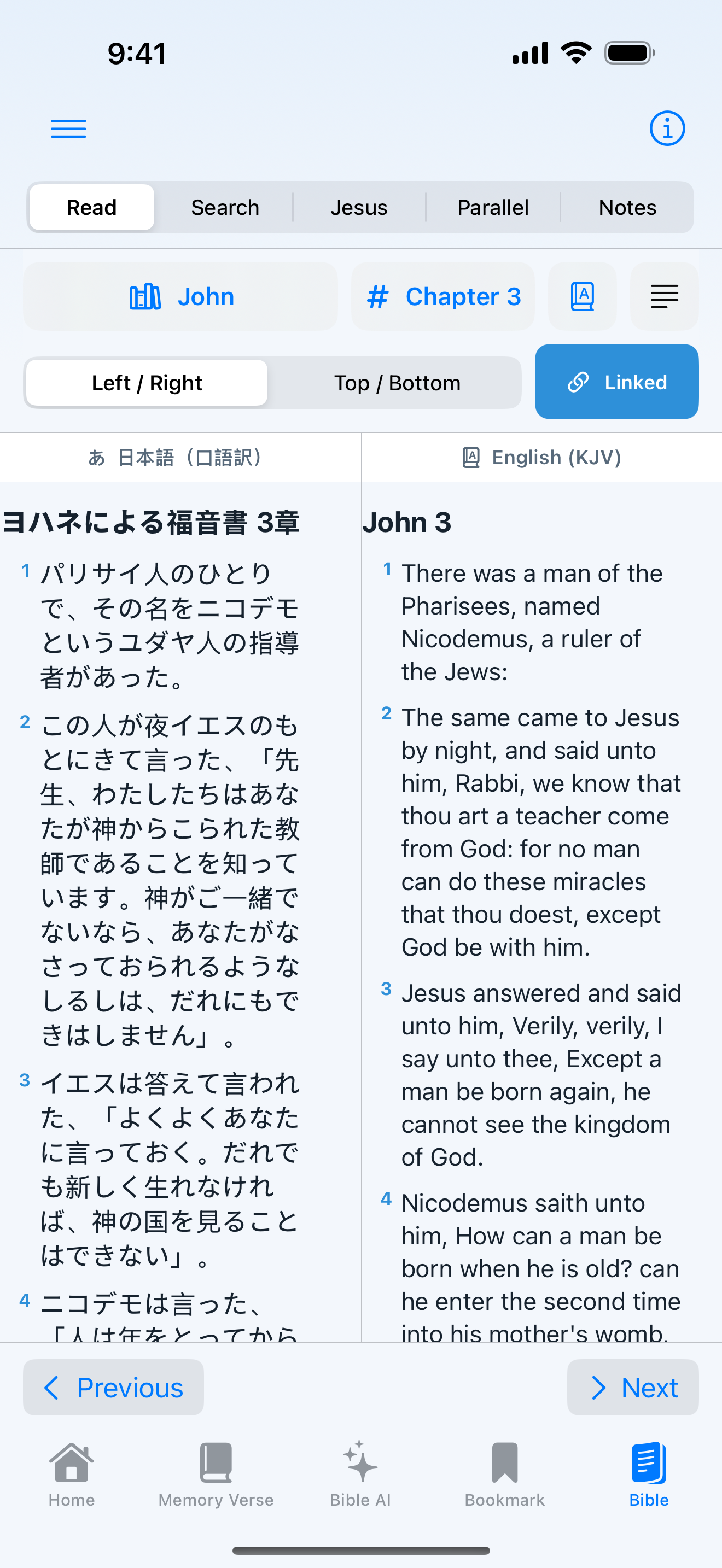
Open Bible from Home or the menu.
Tap the book and chapter name to move to another passage.
Choose one, two, or three panes on supported devices. Each pane shows its current Bible or study resource.
Tap a verse to select it. Drag across verses to select a longer passage.
Use the action bar to highlight, bookmark, write a note, copy, share, or speak the selection.
Search and original languages
Search: find words or phrases in the Japanese Kougo-yaku or KJV. Tap a result to open it in context.
Parallel reading: compare Japanese and English, or add a study resource in another pane.
Word links: tap a supported WLC Biblical Hebrew word to highlight linked KJV or Japanese Kougo-yaku words; Greek New Testament word links are available with KJV.
Delitzsch Hebrew New Testament: compare Delitzsch's Hebrew translation with KJV or Kougo-yaku using the same linked-word display. Delitzsch is a Hebrew translation of the New Testament, not the original New Testament text.
Word details: view Strong's number, reading, gloss, and related occurrences.
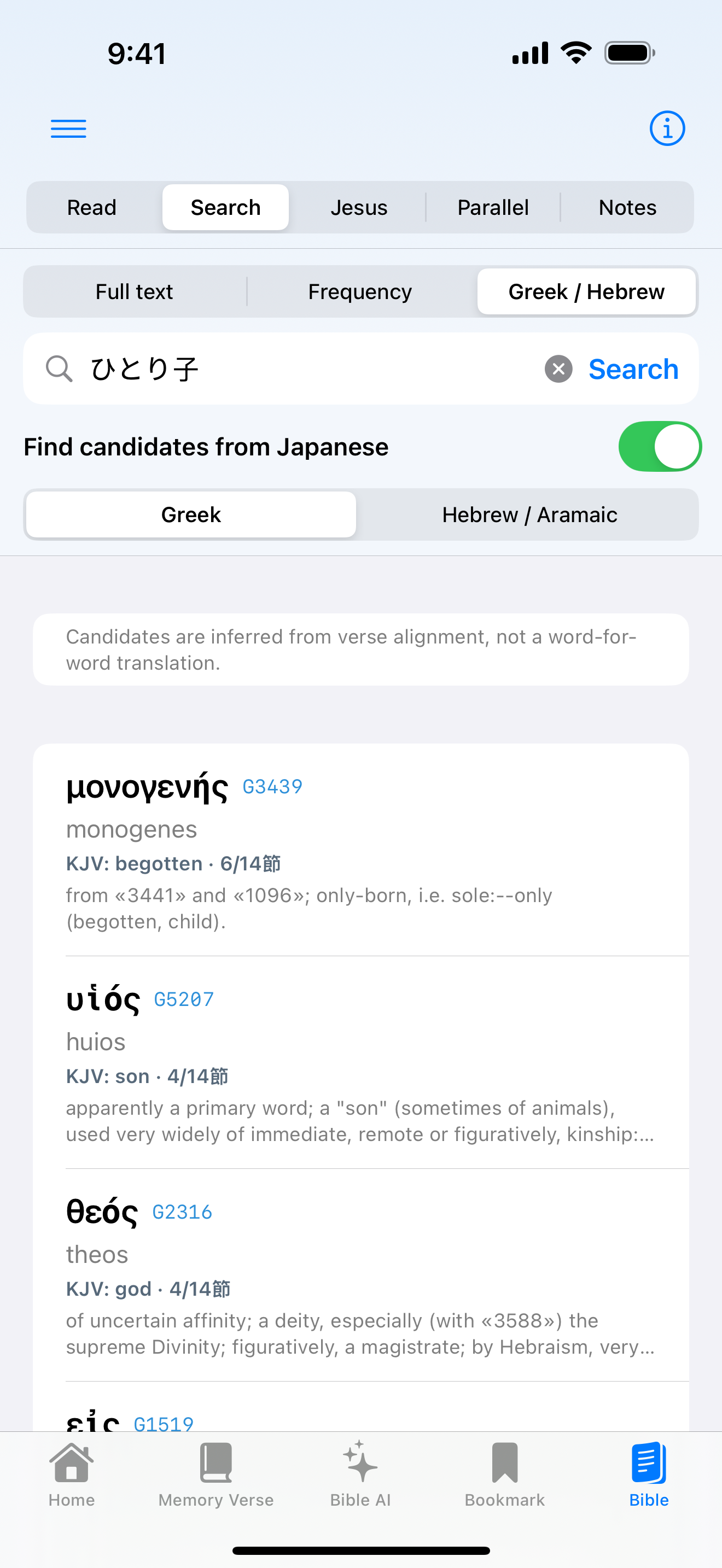
Japanese-to-original search: start with a Japanese word and find related Greek or Hebrew entries.
Gospel Parallels: compare matching scenes in Matthew, Mark, Luke, and John.
Words of Jesus: browse passages containing Jesus' sayings.
Commentary, Bird's Eye View, and TSK: open explanation and cross-reference sheets. Supported OS versions can translate explanatory text on device.
Saved: reopen bookmarks, verse notes, highlights, and commentary notes.
The Bible database and saved study tools work offline after installation. Network-based translation and Bible AI need an internet connection.
6. Bible AI
Sign in from Settings → Account, then open Bible AI. The newest messages and question field are shown at the bottom.
Ask one clear question at a time. Include the Bible passage, year, seminar, or Church topic you mean.
Use the conversation controls to create a new conversation, switch saved conversations, or delete the current one—including an empty saved conversation.
Copy one answer from its action button. Use the thread actions to copy or share the whole conversation.
For a long saved conversation, use Show Earlier Messages to reveal older parts without slowing the newest part.
Read the label at the start of the answer. It says either that Davar sources were verified or that this is a general response not verified as Davar teaching.
Check inline numbers such as [1], the source list, and supporting excerpts.
If a Davar-specific question has no relevant Davar source, the service stops with a temporary-unavailability message instead of guessing. General Bible questions remain available.
7. Ready to Receive Jesus
Open Menu → For Newcomers → Ready to Receive Jesus. The guide explains God's love, sin, salvation through Jesus Christ, faith, a confession of faith, and the next steps of Christian life.
English introduction (about 1:17).
8. Other features
Home and Church updates
Pull down to refresh. Open weekly bulletins, narrated sermon summaries, announcements, events, newsletters, Church School updates, and branch blogs.
Bulletins and newsletters
Switch between PDF and readable Text. Two landscape bulletin spreads are shown as four portrait reading pages; sharing keeps the original PDF.
Media
Open Live Streaming, Cornelius Fellowship, official YouTube channels, teaching series, and Church Photos & Videos. Videos may continue with Picture in Picture.
Settings and account
Choose language and text size, and manage sign-in/sign-out in one place. Choose administrator announcements independently from the daily 8:00 AM Los Angeles site-update notification. See the role comparison for the features available to User, Operator, and Administrator. Signing out takes effect immediately and returns the sign-in button.