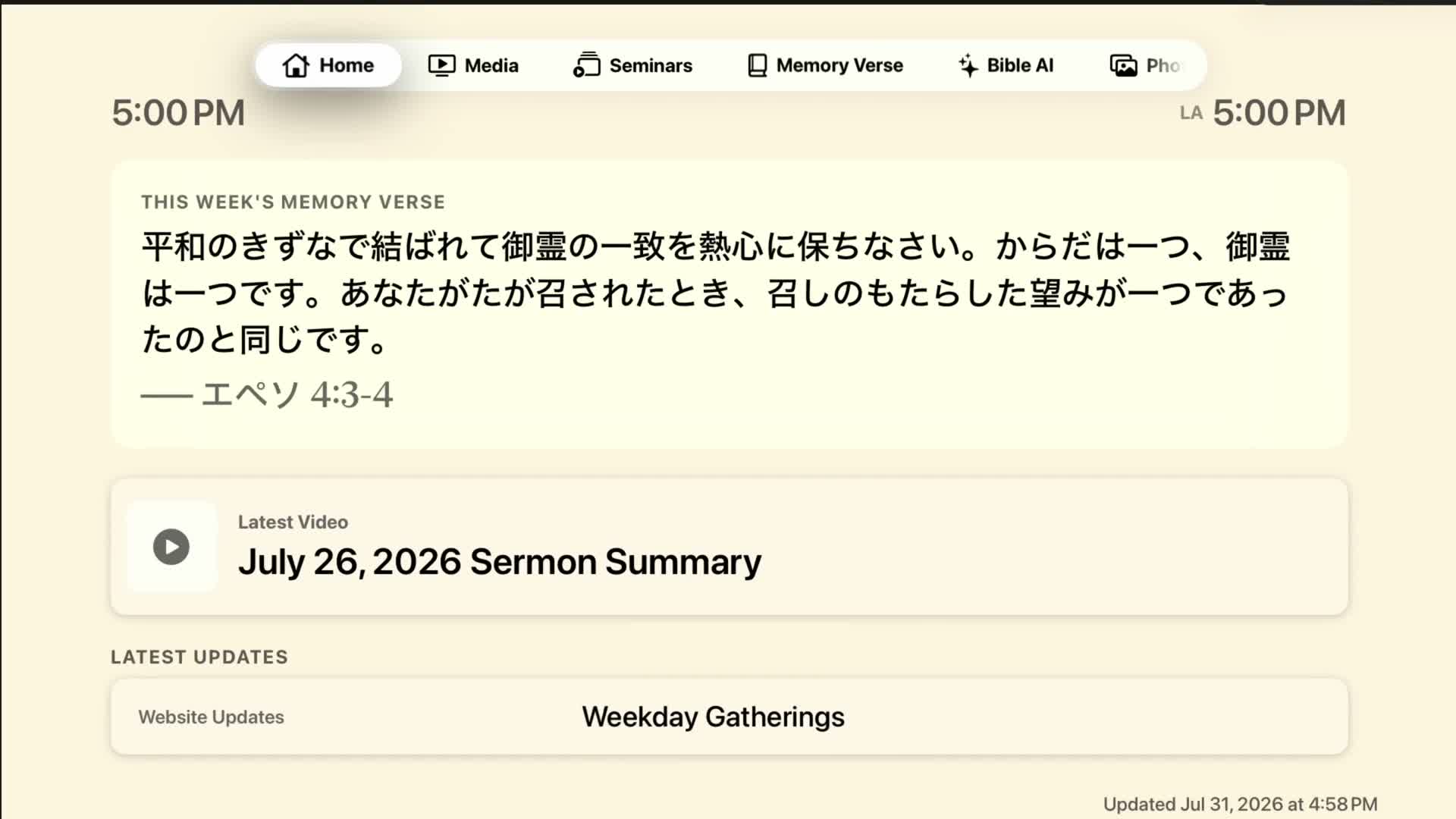
Home shows Church updates, local and Los Angeles time, the current Memory Verse, and a background slideshow. Move left or right to change tabs. Select a card to open it.
Use the Siri Remote to move the focus, press the center to select, and press Back/Menu to return. Most sections do not require sign-in.
Home shows Church updates, local and Los Angeles time, the current Memory Verse, and a background slideshow. Move left or right to change tabs. Select a card to open it.
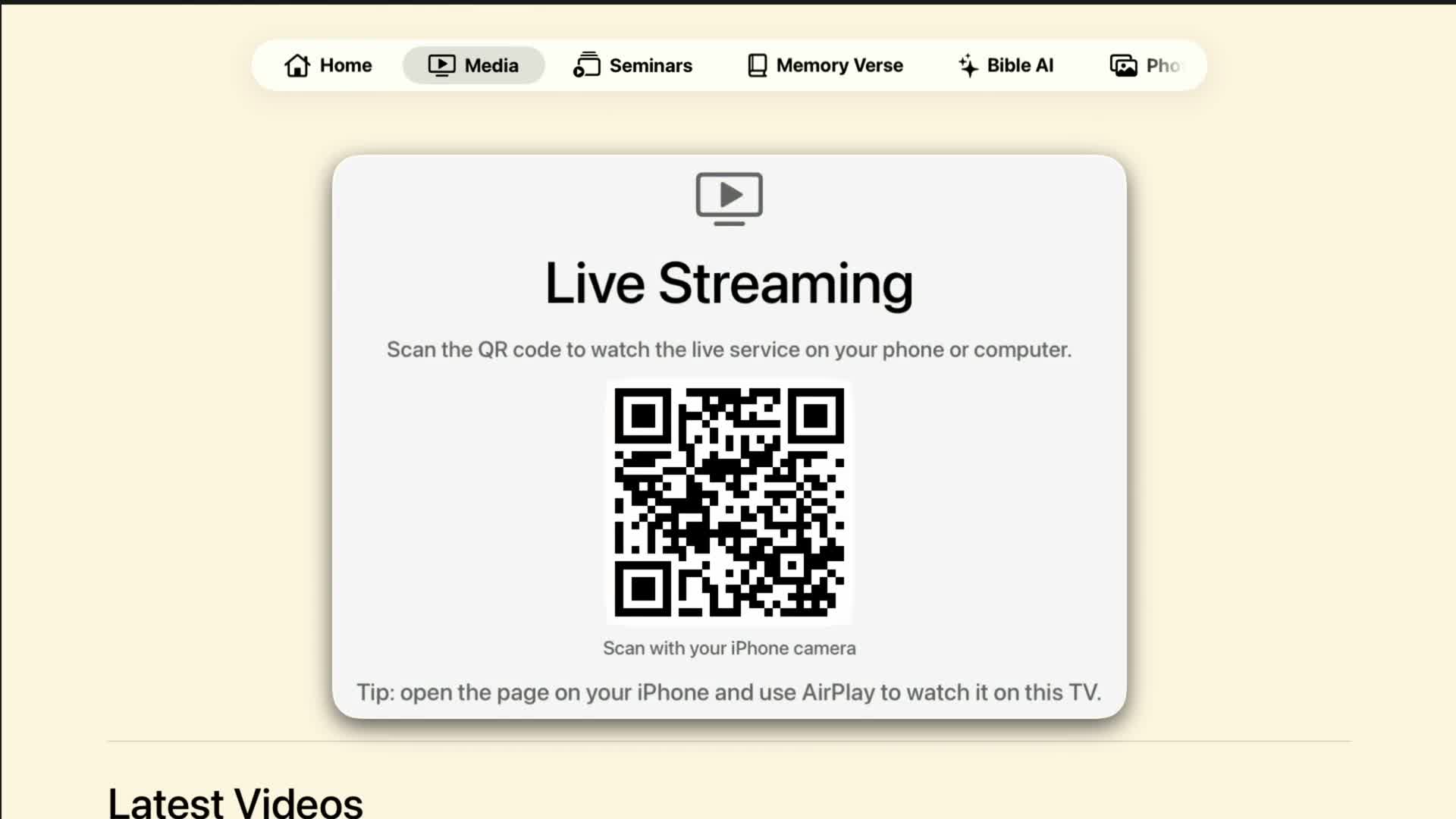
Open Media for Live Streaming and recent videos. A playable Church MP4 opens in the built-in player. Web-only content displays a QR code; scan it with an iPhone.
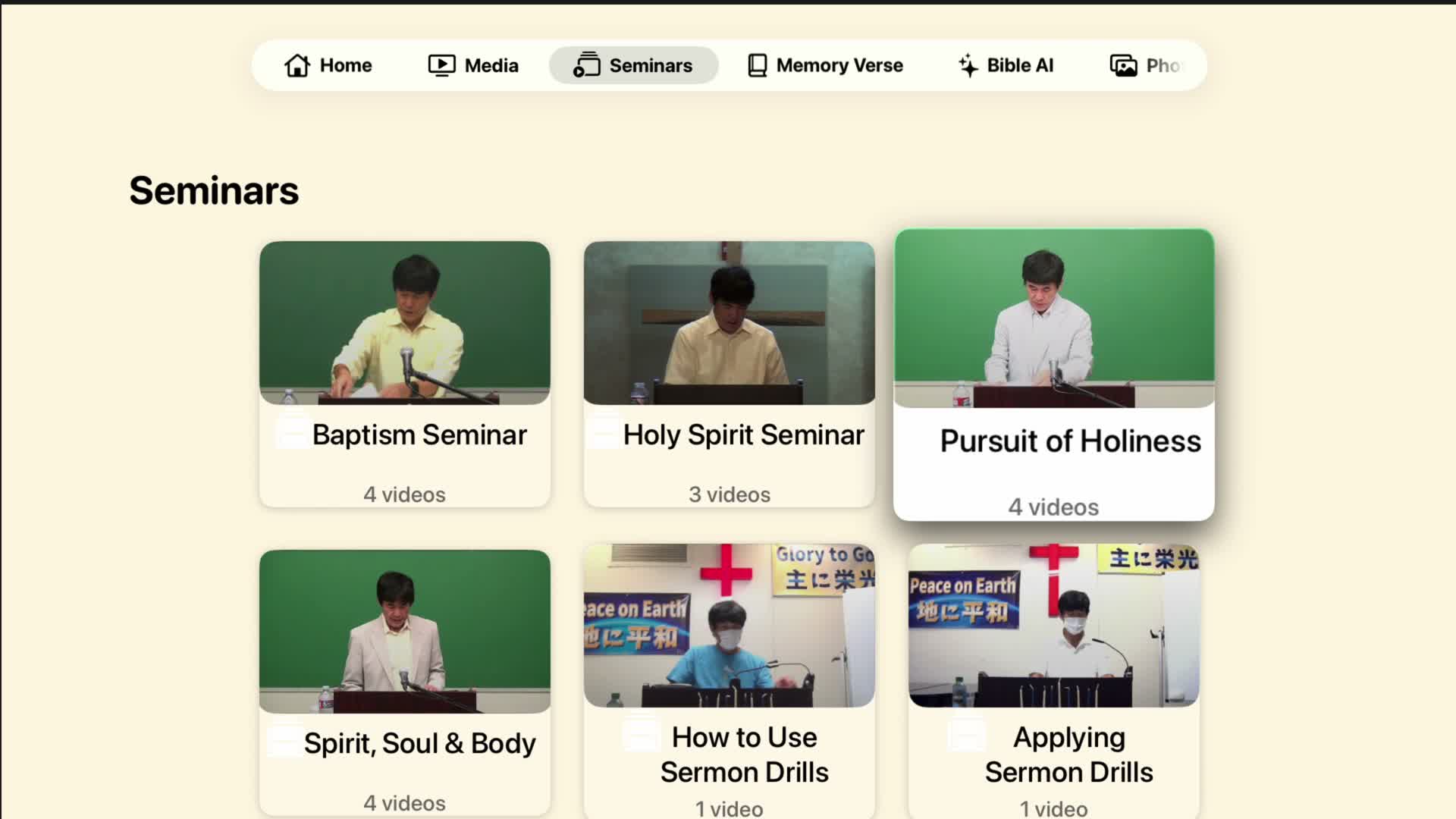
Choose a series, then choose an episode. Playback continues through the remaining episodes. Use the remote's play/pause and Back buttons.
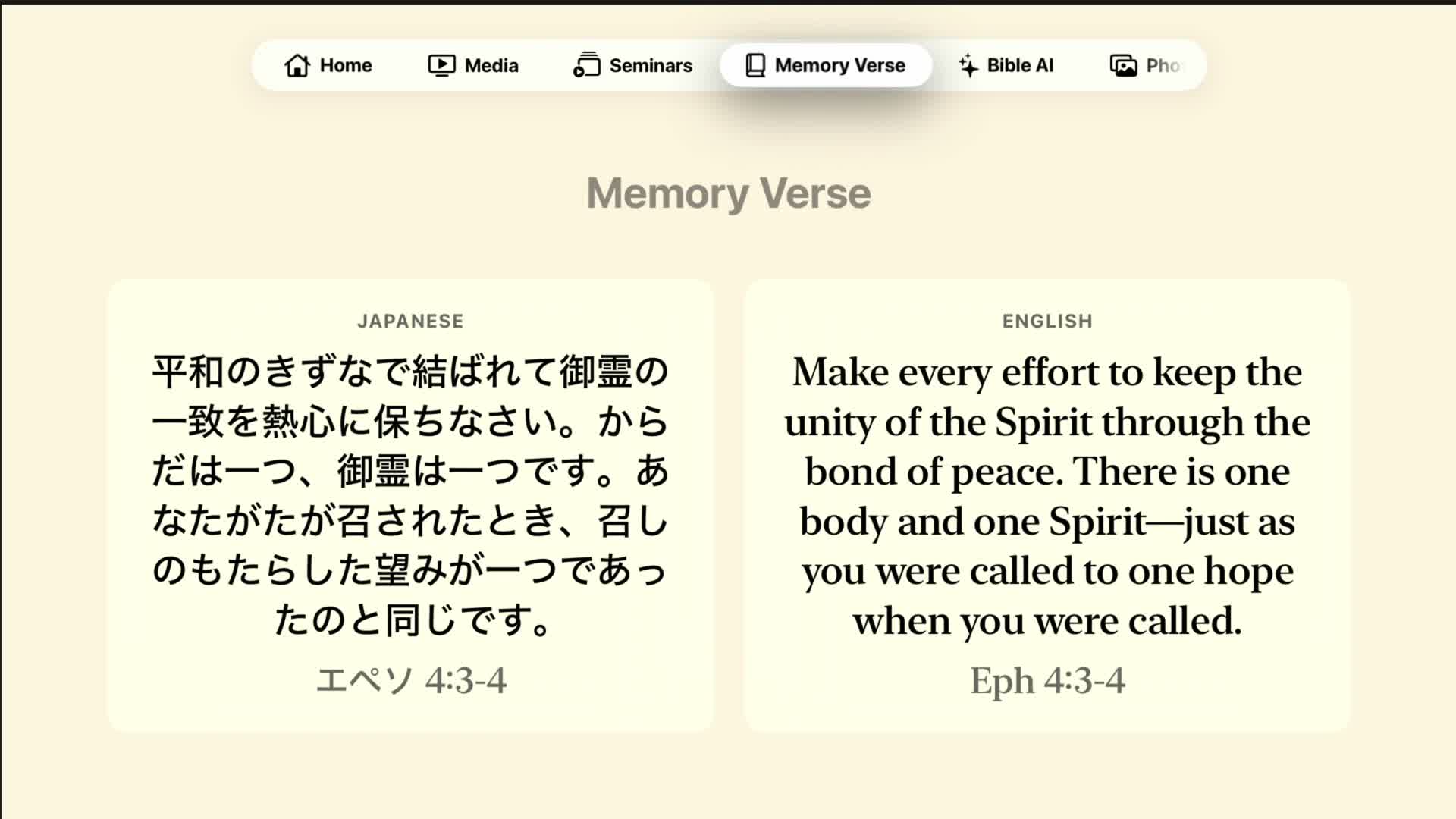
Read Japanese, English, or both. Change the language choice in Settings. The app remembers your preference.
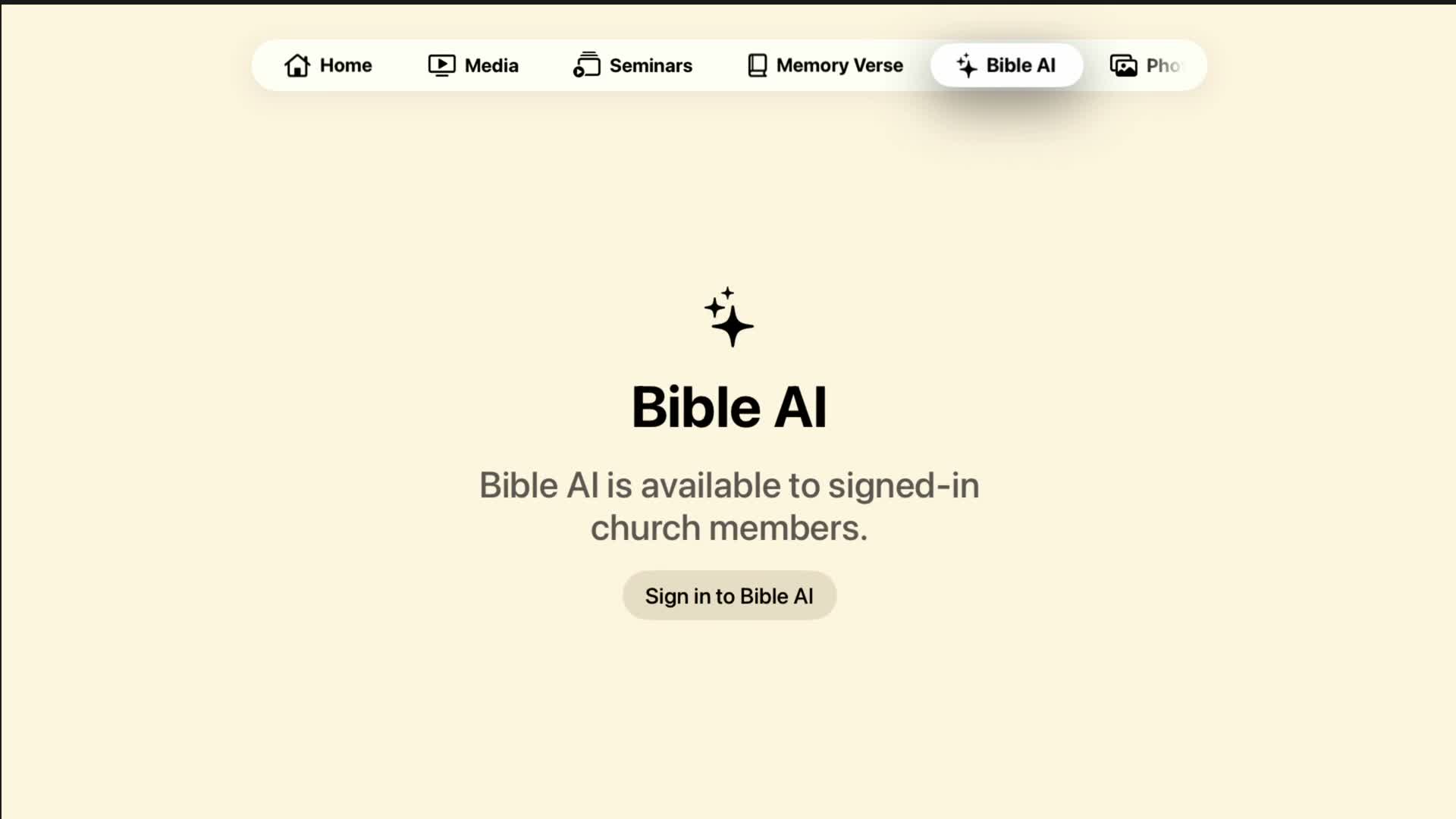
Bible AI requires the member password. Use the Apple TV keyboard or a nearby iPhone keyboard. Read the answer-basis label and supporting sources. Davar-specific questions stop safely when no relevant Davar source is available.
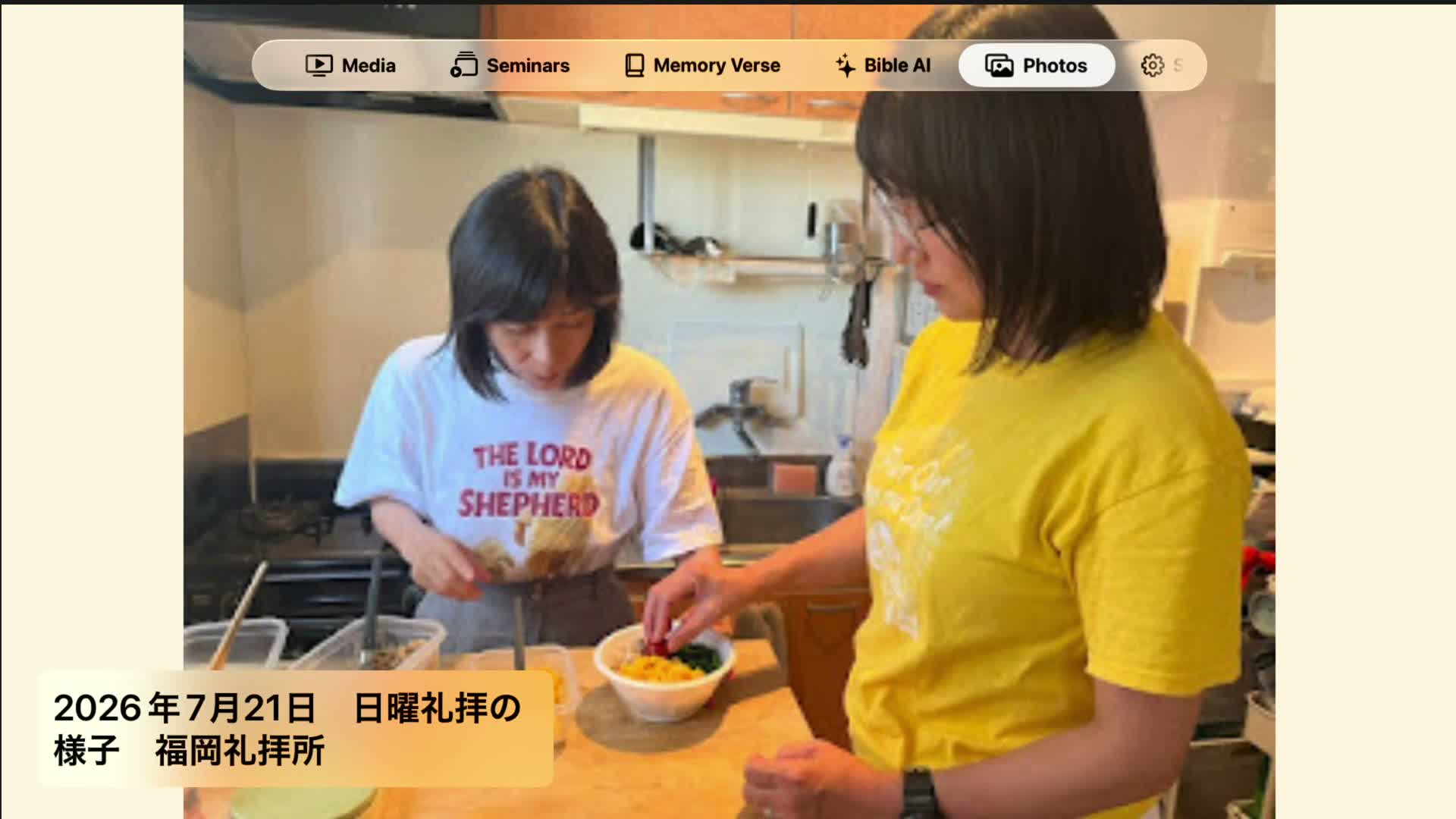
Only Public media appears. Photos may use smooth motion and transitions. Videos in the Home background are muted; Photos-tab video sound can be changed in Settings. Unavailable media is skipped instead of showing a blank slide.