Menu 6
Bible
Read Scripture, original-language texts, commentaries, and licensed books in one reader, compare them in panes, and use notes and read-aloud.
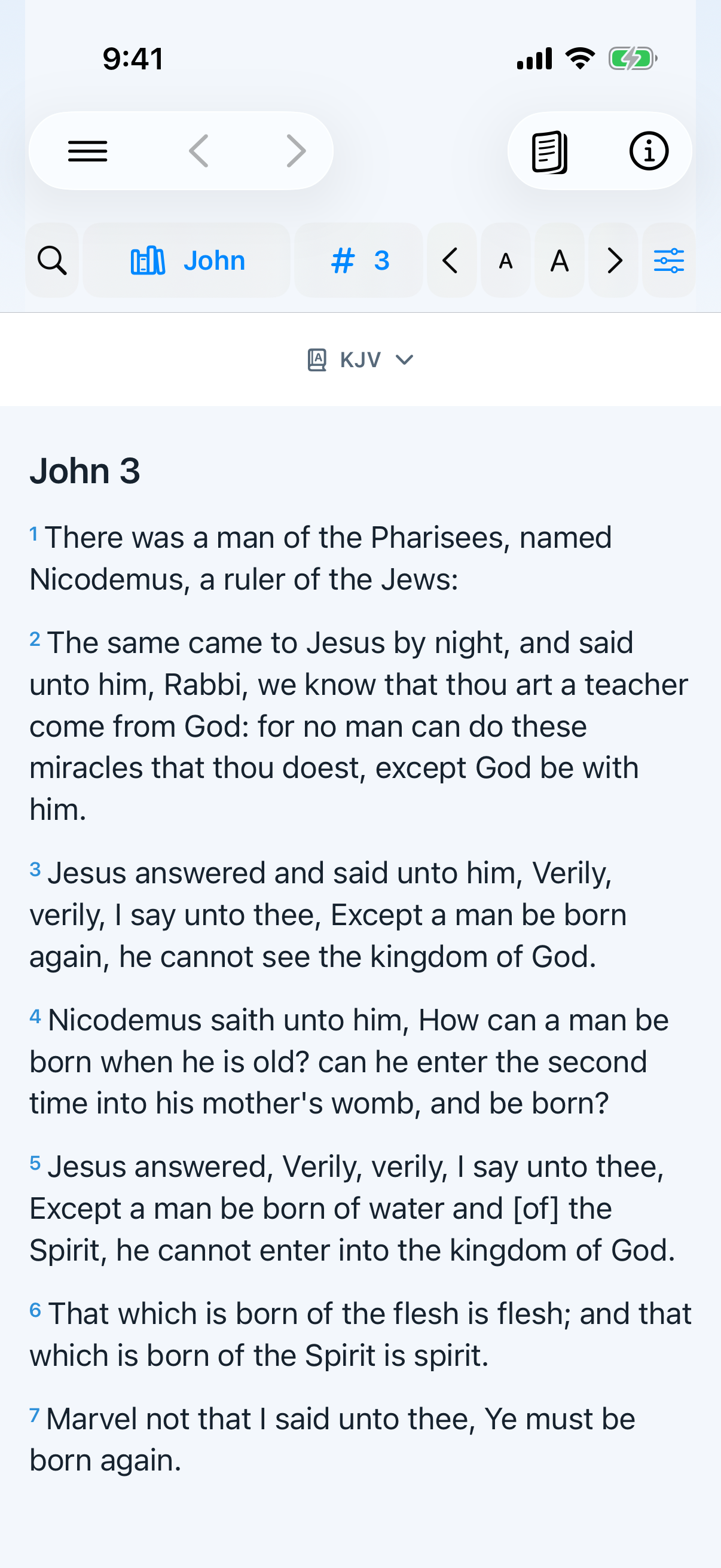
Read the Bible
- Tap Bible in the bottom bar or menu.
- Tap the book and chapter controls to move to a passage.
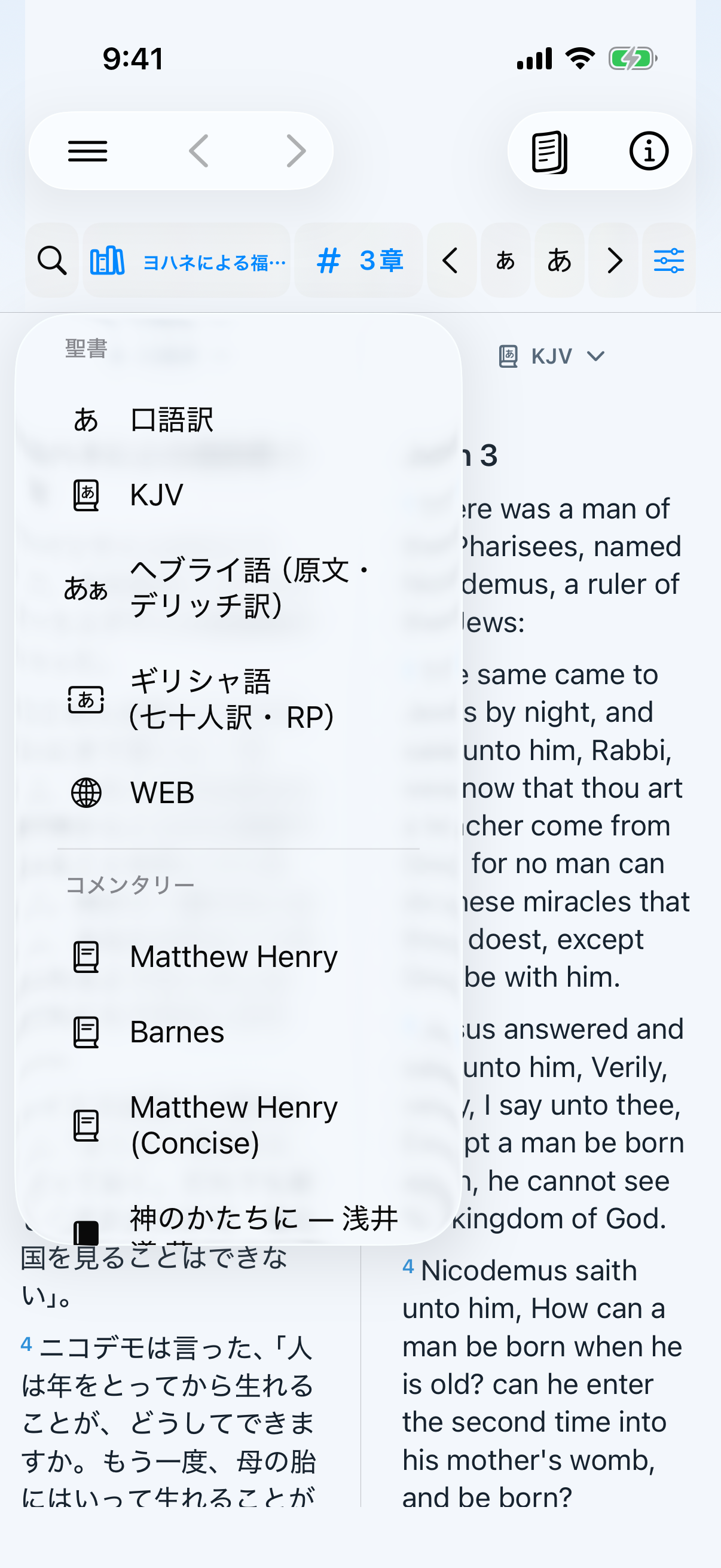
- Tap the resource name to choose a Bible, original text, commentary, or licensed book.
- Use Previous/Next to move by chapter or the resource's next section.
- Use the text-size controls; the global text size in Settings also applies.
Available Bibles and study resources
- Japanese: Kougo-yaku
- English: KJV and WEB
- Original and parallel tools: WLC Biblical Hebrew, Greek New Testament, Delitzsch Hebrew New Testament, Gospel harmony, Words of Jesus
- Commentaries: Matthew Henry, Barnes, Matthew Henry Concise, Bible overview, TSK cross-references, and more
- Licensed/distributed books: including “Image of God.” A locked title opens key entry and its purchase link.
Language icons distinguish Bibles; type icons identify commentaries and books.
Compare in split panes
- Choose one, two, or three panes in Reader Options.
- Assign a Japanese or English Bible, original text, commentary, or book to each pane.
- Choose horizontal/vertical division and drag the divider for readable space.
- Compatible panes follow the same book and chapter. Tap an original-language word to highlight its linked Kougo-yaku or KJV word.
Search, original words, and related passages
- Full-text searchSearch Kougo-yaku or KJV and open a result in context.
- Original-word detailView Strong's number, reading, meaning, and other occurrences.
- Japanese to originalFind related Greek or Hebrew from a Japanese word.
- TSK and Gospel harmonyExplore cross-references and compare matching Gospel scenes.
- Commentary translationOn supported iOS versions, translate English commentary on the device.
- Return to saved workReopen bookmarks, verse notes, highlights, and commentary notes.
Notes, bookmarks, and highlights
- Tap a Bible verse or a supported text unit in a book; select a range when needed.
- Choose Bookmark, a highlight color, Note, Copy, or Share.
- The resource and location are saved. Return from Notes / Bookmarks / Highlights in Bible.
- Supported commentary and licensed-book units use the same annotation tools.
Read aloud
Tap the speaker to read the open Bible chapter. For Image of God, reading begins at the currently open original-page position, advances one page at a time, and continues to the end of the book unless you stop it. The player offers pause, stop, 15-second back/forward, speed, and AirPlay/Bluetooth output. Playback controls also appear on the Lock Screen and in Control Center, with background playback and a saved resume position. A verse or text action can begin “Read aloud from here.”
Activate a licensed book
- Tap a locked title in the resource list.
- Use the displayed purchase link to obtain a key.
- Enter the six-digit key in the
111-111format. This dummy number shows only the format. - If unused and unexpired, the book downloads and remains readable on that device.
- “Image of God” opens in Continuous view by default. Switch to Original to inspect printed page numbers and boundaries; its contents list jumps to sections.
Dedicated guide: See the illustrated purchase, six-digit key, icon, one-pane, and Bible split-view guide for “Image of God.”
Offline: Bundled Bibles, saved study work, and activated books remain available offline. Translation and new activation require a connection.