Menu 1
Home
Home is the starting point for this week's Memory Verse, the newest sermon, announcements, the bulletin, and site updates.
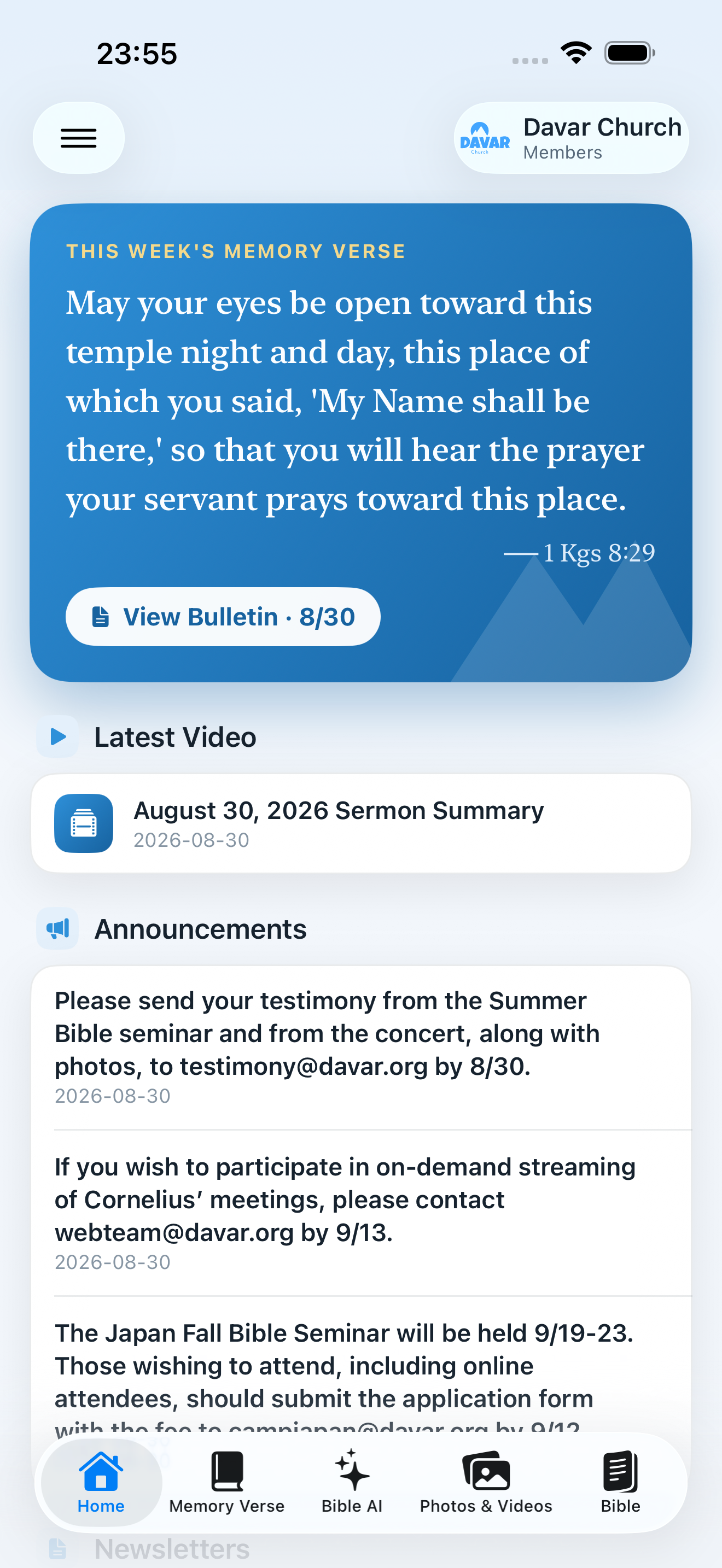
See the latest information
- Tap Home in the bottom bar.
- If the content looks old, pull the screen down and release it.
- Tap a card to open its bulletin, sermon, article, or gallery.
- When offline, the last saved content appears with an offline notice. Refresh again after reconnecting.
What appears on Home
- This Week's Memory VerseShows the verse and card and opens Memory Verse.
- Latest video and sermon summaryPlay the video; supported summaries can be read aloud by the device.
- AnnouncementsTap to act. An item containing an email address starts an addressed draft; one without email opens the relevant bulletin page.
- BulletinRead one page at a time from View Bulletin and share the original PDF.
- Verse CardsShows every card from the last seven days plus the latest card for each branch. Each card also shows its attached Blogger tags, such as “みことばカード” and its branch. iOS 1.20 build 248, waiting for App Review and available in internal TestFlight, includes this rule and tag display.
- Branch blogsShows every non-card article from the last seven days plus the latest article for each branch.
- Website updatesShows up to 16 updated public pages from the previous 31 days, newest first.
- Social updatesView YouTube video titles, channels, and publication dates, then open each video directly.
- Store updatesCurrent products appear while their publishing window is active.
Read the bulletin
- Tap View Bulletin.
- On iPhone, use the page-by-page reading order instead of a small two-page spread.
- Where text view is available, select text to copy it or use the device's Translate action.
- The Share button shares the original PDF.
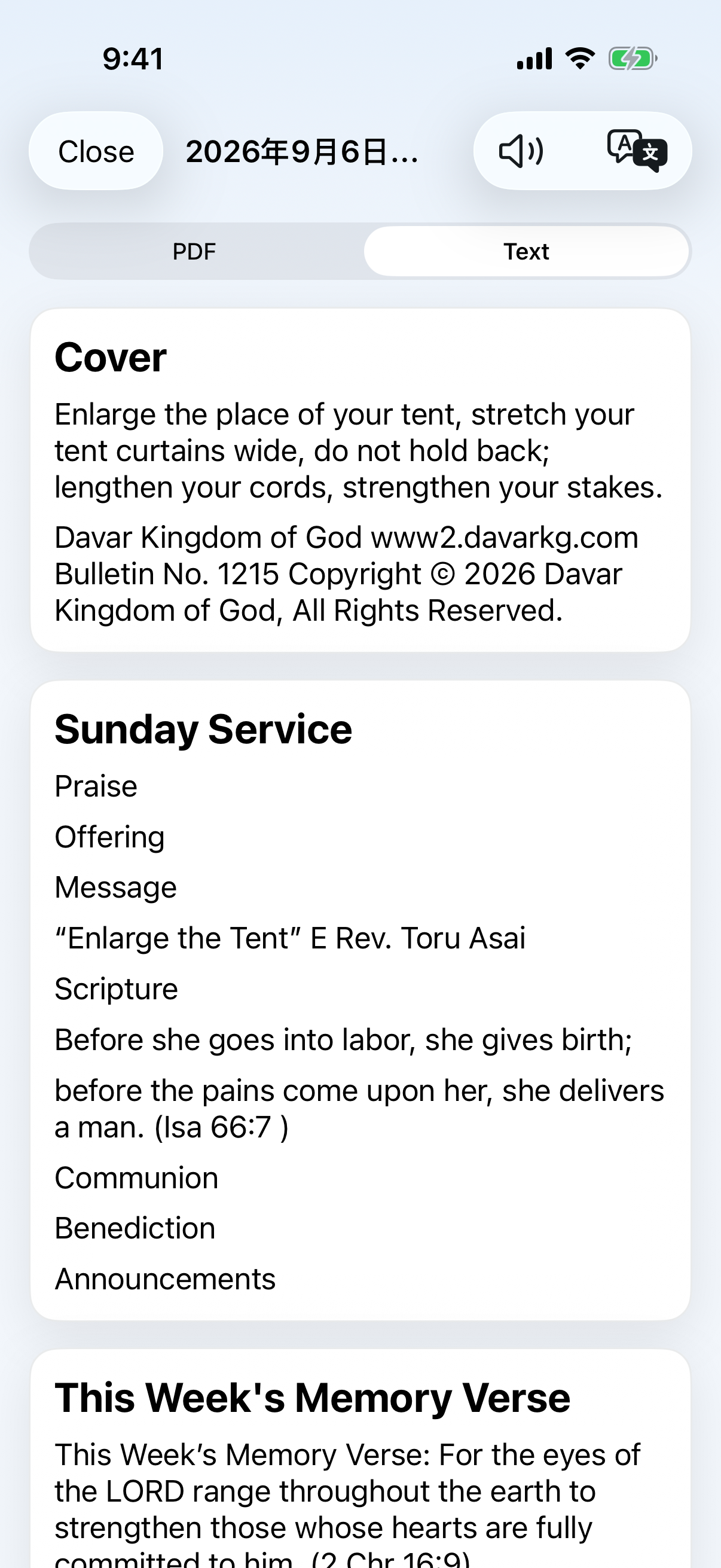
Translation and read-aloud
A Translate button translates that card's title and body on the device. A speaker button reads supported text aloud, with play, pause, speed, and 15-second movement controls. Network translation needs a connection; saved text and device speech may remain available offline.
About update alerts: “Bulletin updated” means the bulletin file itself changed. The morning site-update digest can also summarize photos, videos, Verse Cards, Store products, and other site updates once per day. Open the notification to see each Verse Card title, its attached tags and post link, and each Store product title with a direct product-page link.
Social updates
iOS 1.20 build 248, waiting for App Review and available in internal TestFlight, displays the complete eligible set returned by the server. Public App Store availability will be announced separately.
Scroll down Home to find Social updates before Store updates. Each item shows the video title, source channel, and publication date. Tap the title to open that exact video.
YouTube updates come from the public Davar Kingdom of God and Jun Asai channels. For each source, Home always keeps its newest item and also shows every available post published in the previous 31 days, ordered newest first. The server checks about every six hours. Pulling down Home reloads the information already collected by the server. Post titles remain in their original language.
If a source cannot be refreshed, its previously validated items remain visible under the same publication rule, with a notice. An empty state appears if no items have been collected yet. Instagram is awaiting its official API connection and does not appear until that is complete. Open Facebook and X from Links.
The first collected videos appear on Home without sending a batch of Push notifications for older uploads.