Menu 3
Memory Verse & Verse Cards
Read this week's verse, find older card artwork, zoom or share it, and post your own finished card to the gallery and Blogger.
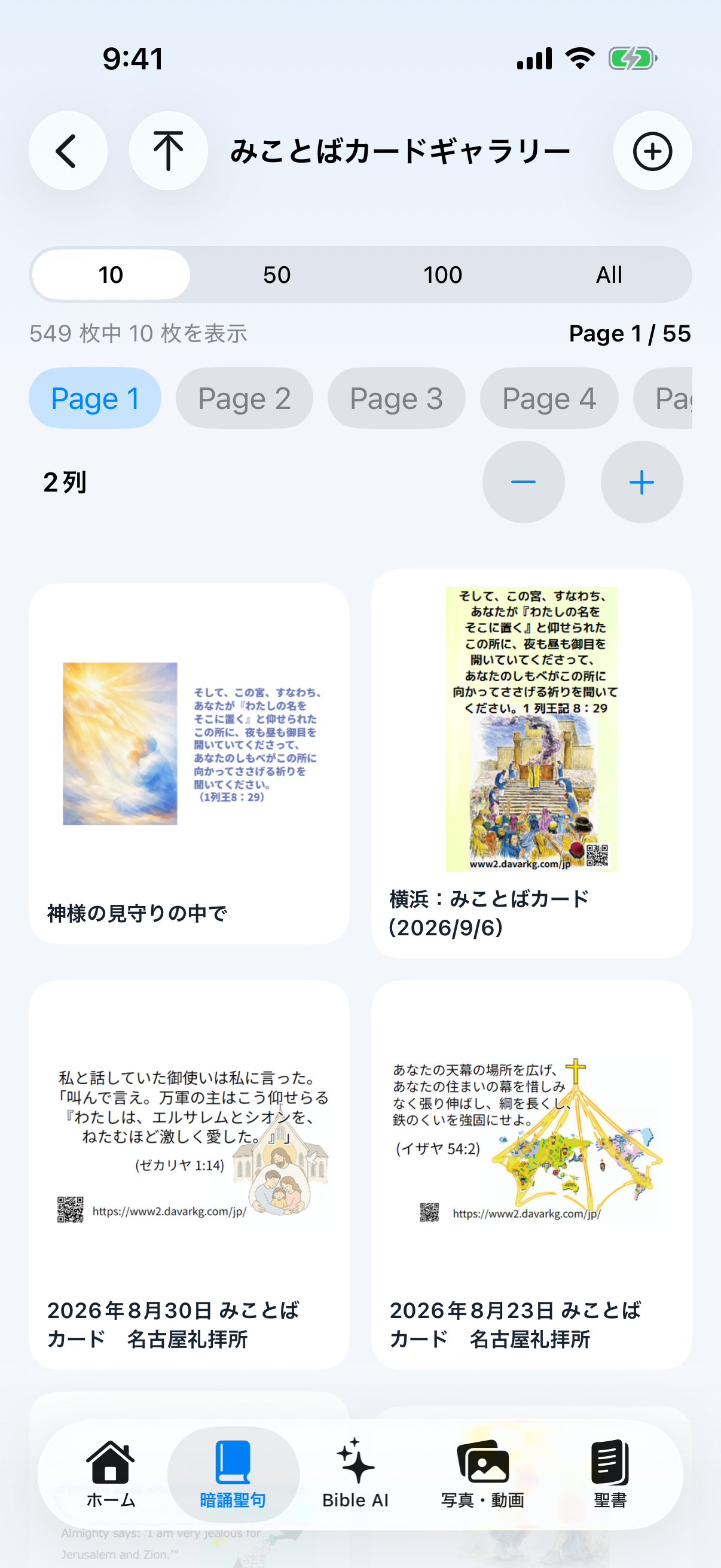
View Cards and browse the gallery
- Tap Memory Verse in the bottom bar or three-line menu.
- Read the Japanese and English verse. Use translation or speech when those actions are shown.
- Tap Verse Card Gallery to see current and older cards.
- Choose 10, 50, 100, or All for the number of cards on a page, then use the Page buttons.
- Use − / + to change the number of columns. The upward arrow at the upper left returns to the top.
- Tap a card for detail. Pinch to zoom, then pan the enlarged image with one finger and move to adjacent cards.
- Use Share to send the card image to an iPhone share destination.
Post a Verse Card
- Sign in as User, Operator, or Administrator under Settings → Account.
- Open Memory Verse → Verse Card Gallery → + at the upper right. If signed out, the app first asks you to sign in.
- Choose one finished card image and rotate it when needed.
- Enter the public title and an optional comment.
- Choose Blogger labels. To include the post in the app gallery, select the exact みことばカード label.
- Tap Upload once and keep the screen open through the completion message. Replacement with Blogger-hosted media may continue afterward.
- Card detailReview the title, date, and image, then zoom, move between cards, or share.
- Display controlsCombine page size and column count to browse a large archive efficiently.
- ManagementAuthorized roles can edit title, comment, and labels, rotate the image, or delete the post.
- Public contentThe image, title, and comment are public. Remove personal information and confirm permission.
Uploaded but missing from the gallery? A Blogger post will not appear in the app without the exact “みことばカード” label. Check the labels in Edit. Use one finished image no larger than 10 MB.