A book inside Bible
“Image of God”
Purchase and reading guide
Toru Asai’s Image of God uses the same reader as Bibles and commentaries. You can inspect its cover, contents, and preface before purchase, then use search, notes, bookmarks, highlights, speech, and split panes after activation.
Read the cover, contents, and preface before purchase
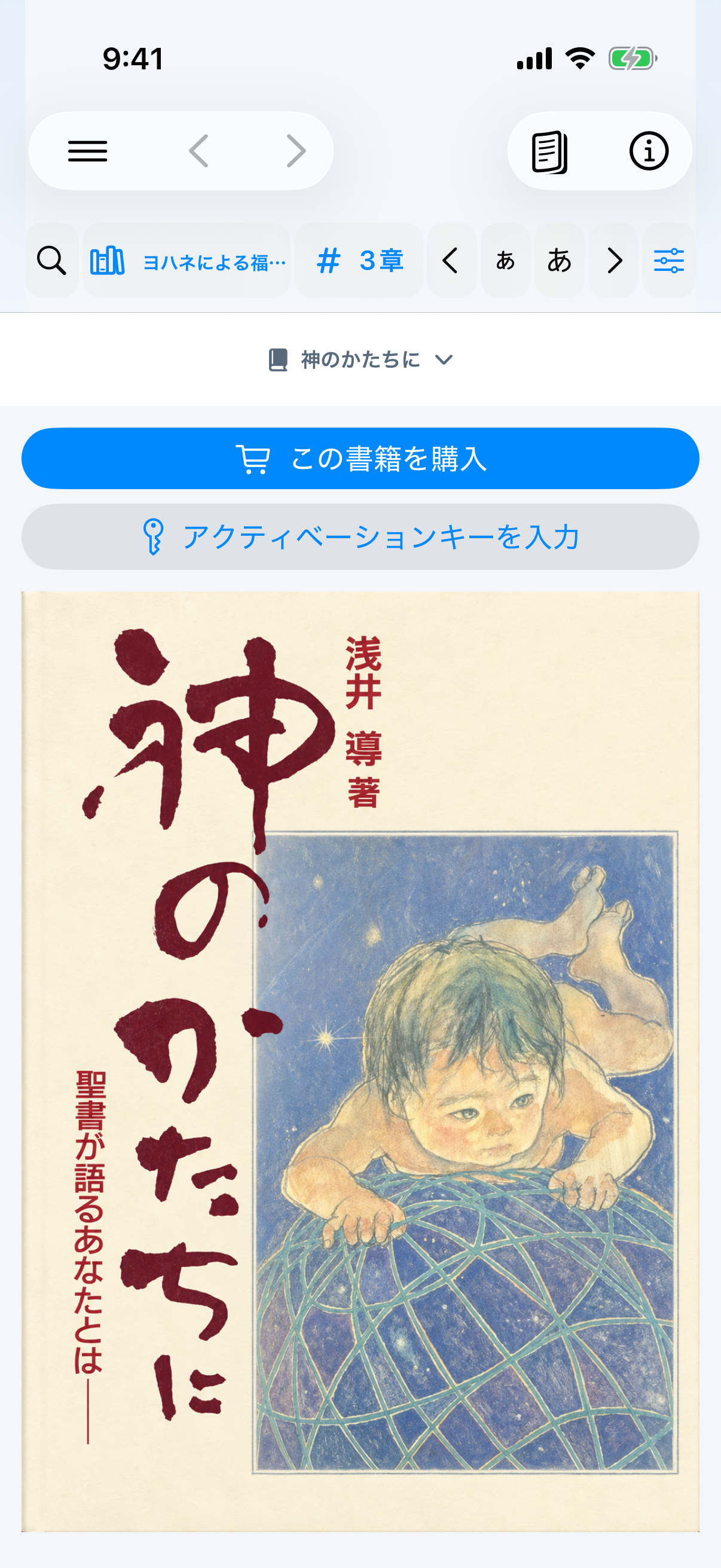
- Open Bible from the bottom bar or three-line menu. A new installation starts in the spacious one-pane layout.
- Tap the resource name at the top and choose Image of God under Books.
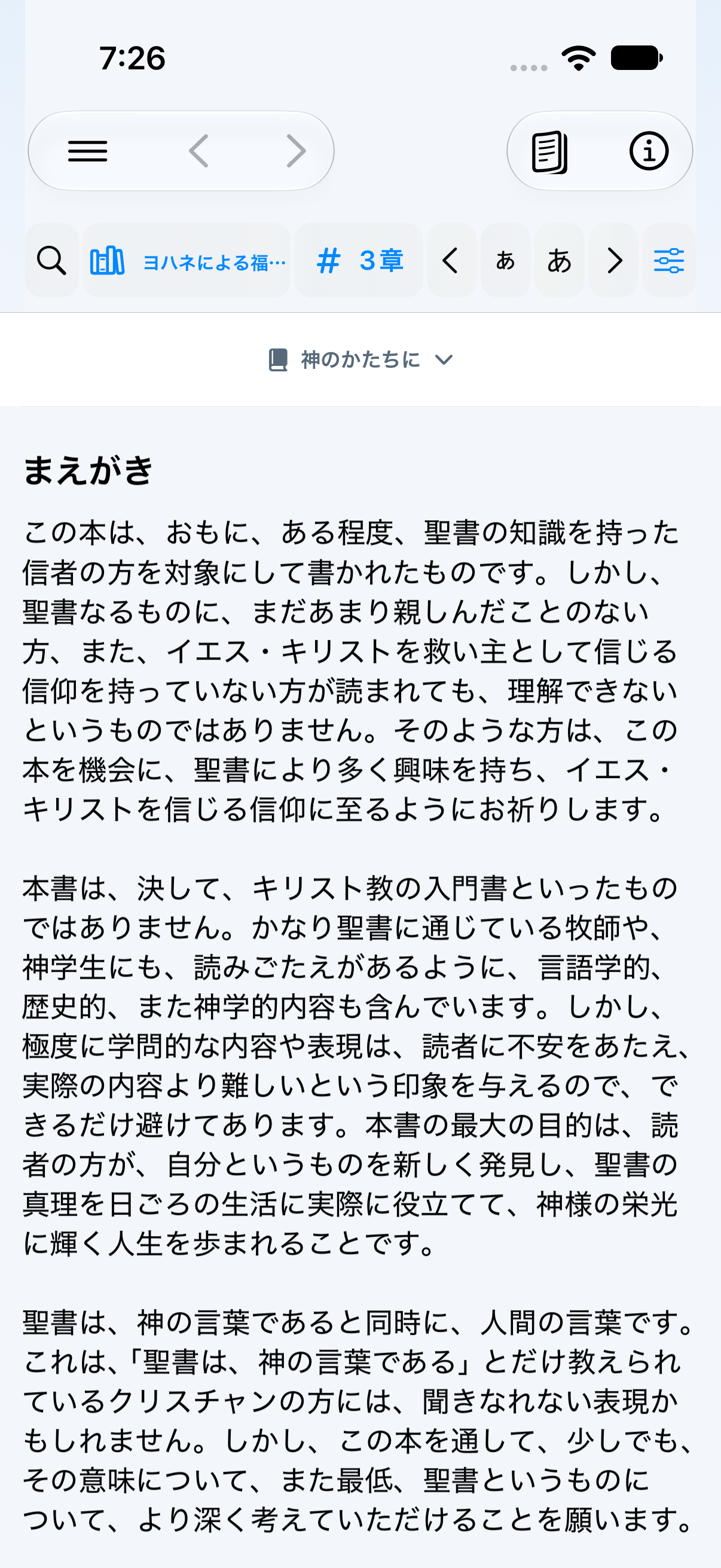
- Scroll through the cover and table of contents, then tap Preface to read it in full.
- If you already purchased the book, tap Enter activation key directly below Purchase this book. Selecting a protected body entry opens the same activation sheet.
Tap Preface in the contents to read the full preface without an activation key. The remaining chapters require the six-digit key issued after purchase.
Purchase and activate with a six-digit key
- Tap Purchase this book on the pre-purchase screen.
- The app opens the store.davarkg.com product page. The purchase page is being prepared and currently returns 404; purchasing through this link is not yet available. If you already have a six-digit key, continue with activation in the app.
- Locate the six-digit key issued after purchase.
- Return to the app and tap Enter activation key directly below the purchase button. No app sign-in is required.
- Enter all six digits. The app displays the middle hyphen automatically, as in
111-111. - Tap Activate and download. A valid key downloads the body to this device.
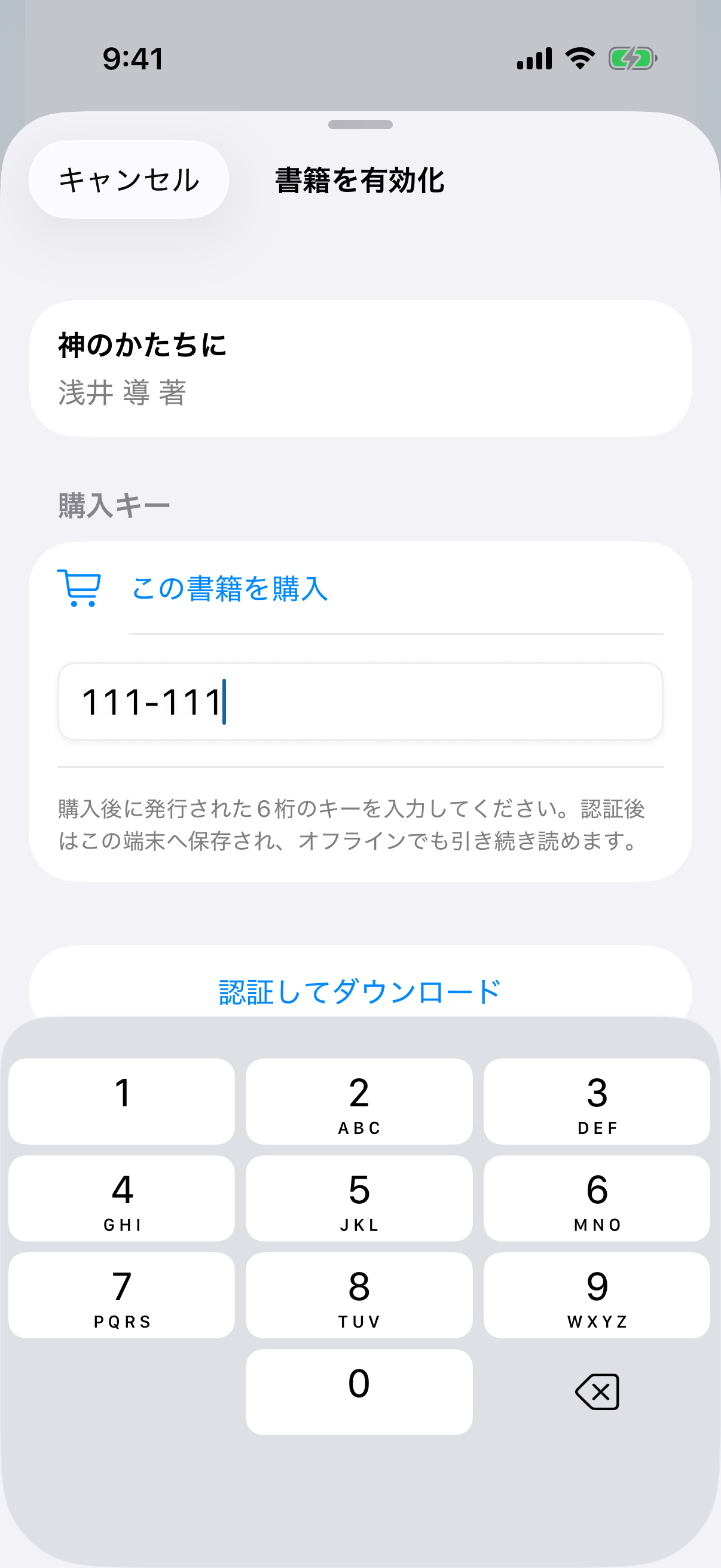
111-111 is a dummy number that only demonstrates the format; enter the key issued with your purchase.After reinstalling, enter the same valid Image of God purchase key. Activation moves the registration used for future downloads to the new installation. Previously saved book text remains readable offline on the former device. No new purchase or app sign-in is required.
Book download progress and preparation (iOS 1.29, build 280)
When activation or a book update downloads content, the activation screen or the bottom of the Bible reader shows the book title and actual received size. If the total size is known, Downloading… includes a percentage and progress bar based on received data. When several books need downloading, Book 1 of 2, for example, identifies the current book; the percentage applies to that book.
If the server cannot provide a reliable total size, the app shows an activity indicator and received size instead of an estimated percentage. When transfer finishes, Preparing book… may appear while the downloaded content is checked and prepared. Reading begins after preparation and local saving finish; a completed transfer alone does not mean the book is ready.
Save the purchaser PDF after activation
- Activate Image of God with your six-digit key, open the book, and return to its beginning.
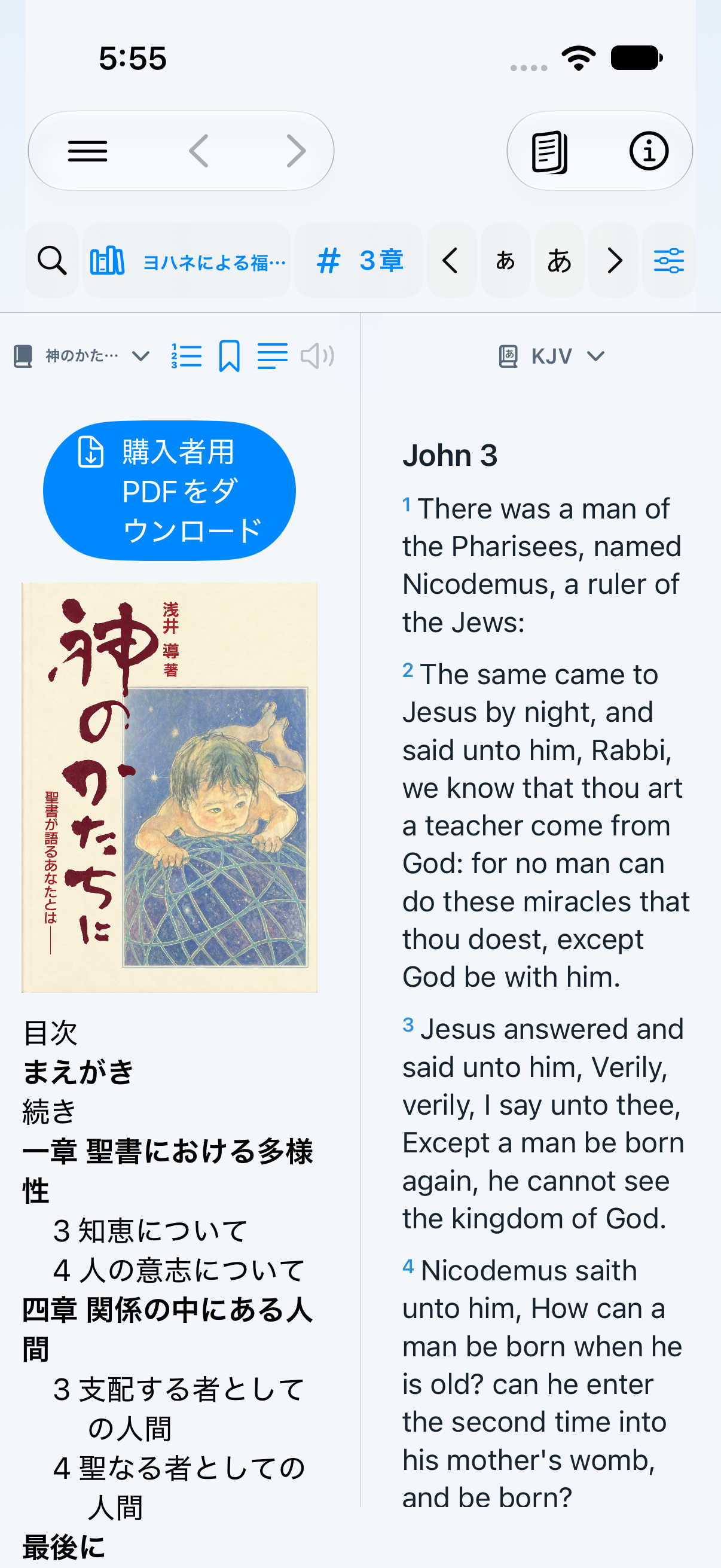
- Tap Download purchaser PDF above the front cover.
- When the download finishes, choose a destination on your device or in Files to save it.
English version and Japanese furigana (iOS 1.29)
The translation is a separate book named In the Image of God — English version in the Bible reader’s source list. After the book list refreshes, purchasers who activated the Japanese book on this device will also be able to read the English edition at no additional charge. Notes, bookmarks and highlights belong to each edition separately.
The Japanese edition displays small reading guides above kanji. Use Reader options → Japanese furigana to show or hide them. Copy and search use the original Japanese text. Narration follows the book’s language: Japanese for the Japanese edition and English for the English version, independently of the menu language.
Both editions include front and back covers in the in-app reader and PDF. The English edition has the same purchaser PDF download button at the beginning of its book. Download each language’s PDF from the corresponding edition.
Choose 2 panes from the Split view menu, then open Japanese in one pane and the English version in the other. Choose Left / Right or Top / Bottom. With both editions open, enable Reader options → Link Japanese/English pages to follow the same original printed page when you navigate either edition. The setting starts off. Turn it off to read at independent positions.
Book controls (iOS 1.31 build 284 / Android 1.39)
On iPhone and iPad, open Reader options for Continuous/Original mode, Japanese furigana, Japanese/English page linking, Split view, and read-aloud. Split view contains the pane count, direction, and Bible-link setting. Android groups Continuous, Original pages, Split, and Read aloud under Book options. Japanese/English page linking and Bible linking remain separate settings.
Text-size controls are available while reading a book in one pane. Tap Home immediately left of the Bible icon to return home. Open Sources and licenses from the Bible menu.
Reader icons after purchase
- ☷ Contents & Search (list.number)Open the table of contents and jump to a heading, or search the body from the same screen.
- 🔖 BookmarkAdd or remove a bookmark at the current text position, then return from Saved items.
- Reading mode in Reader optionsContinuous, the default, reflows the body for the screen. Original preserves printed page numbers and boundaries.
- Reader options → Split viewChoose one, two, or three panes and the supported horizontal or vertical split.
- ‹ › Previous / NextIn Original mode, move through printed pages. In Continuous mode, scroll the text or choose a chapter or section from Contents.
- Reader options → Read aloudStart at the currently open original-page position, advance one page at a time, and continue to the end of the book unless stopped. The player offers stop, pause, 15-second back/forward, speed, and AirPlay/Bluetooth output. Playback continues in the background, appears on the Lock Screen and in Control Center, and saves a resume position.
- Select textSelect one or more text units to highlight, add a note, copy, share, or begin speech from that point.
- Notes / Bookmarks / HighlightsReturn to saved book locations from the same Saved area used by Bible.
Read beside the Bible in two panes
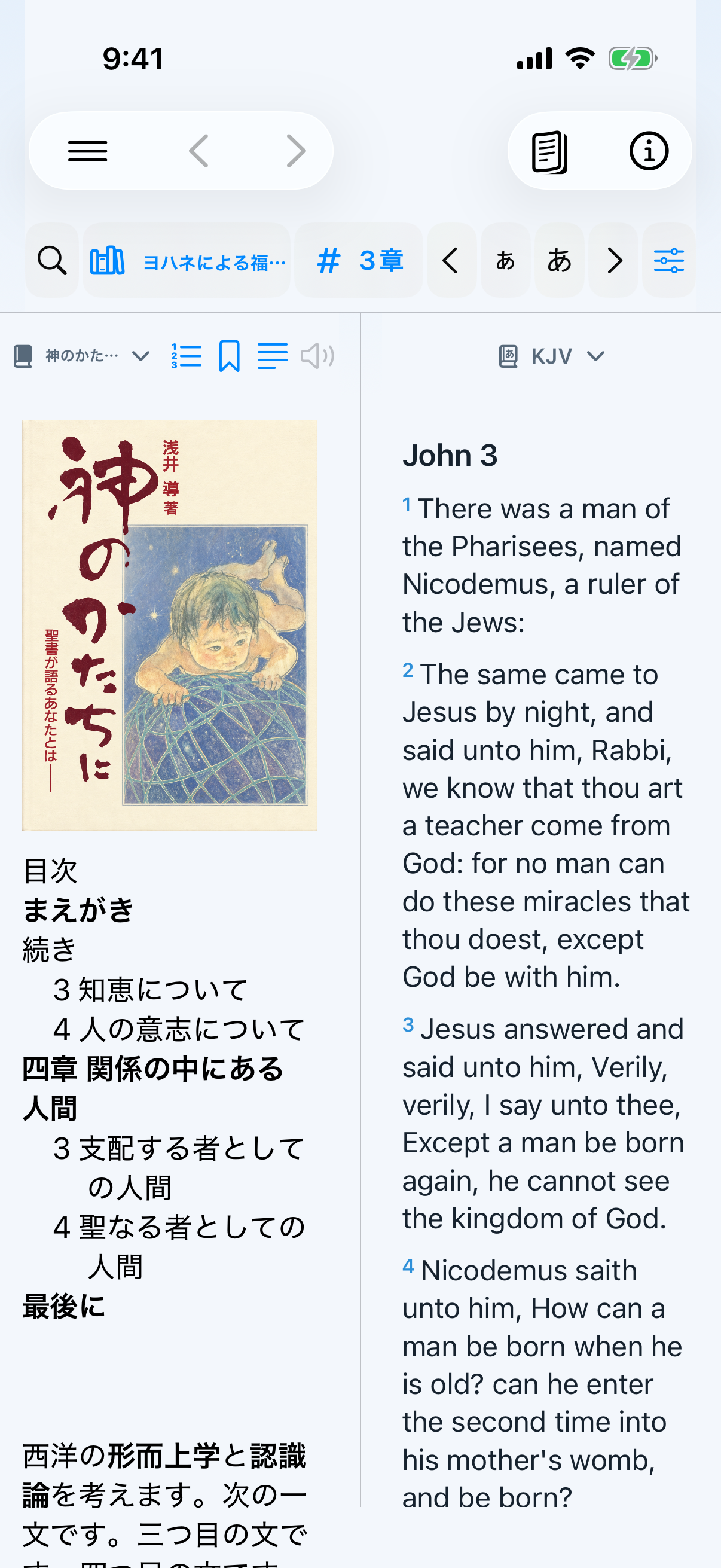
- Open the Split view menu and choose two panes.
- Assign Image of God to one pane and Kougo-yaku, KJV, or another Bible to the other.
- Choose horizontal or vertical division and drag the divider to adjust the reading ratio.
- Keep a cited or related Bible passage visible while reading the book.
Maximize the reading area in one pane
- Choose one pane from the Split view menu.
- The Bible-only book/chapter row is hidden for this book, leaving more vertical reading space.
- In the default Continuous mode, the text flows without printed-page line breaks or verse numbers.
- Switch to Original only when you need to compare printed page numbers and boundaries.
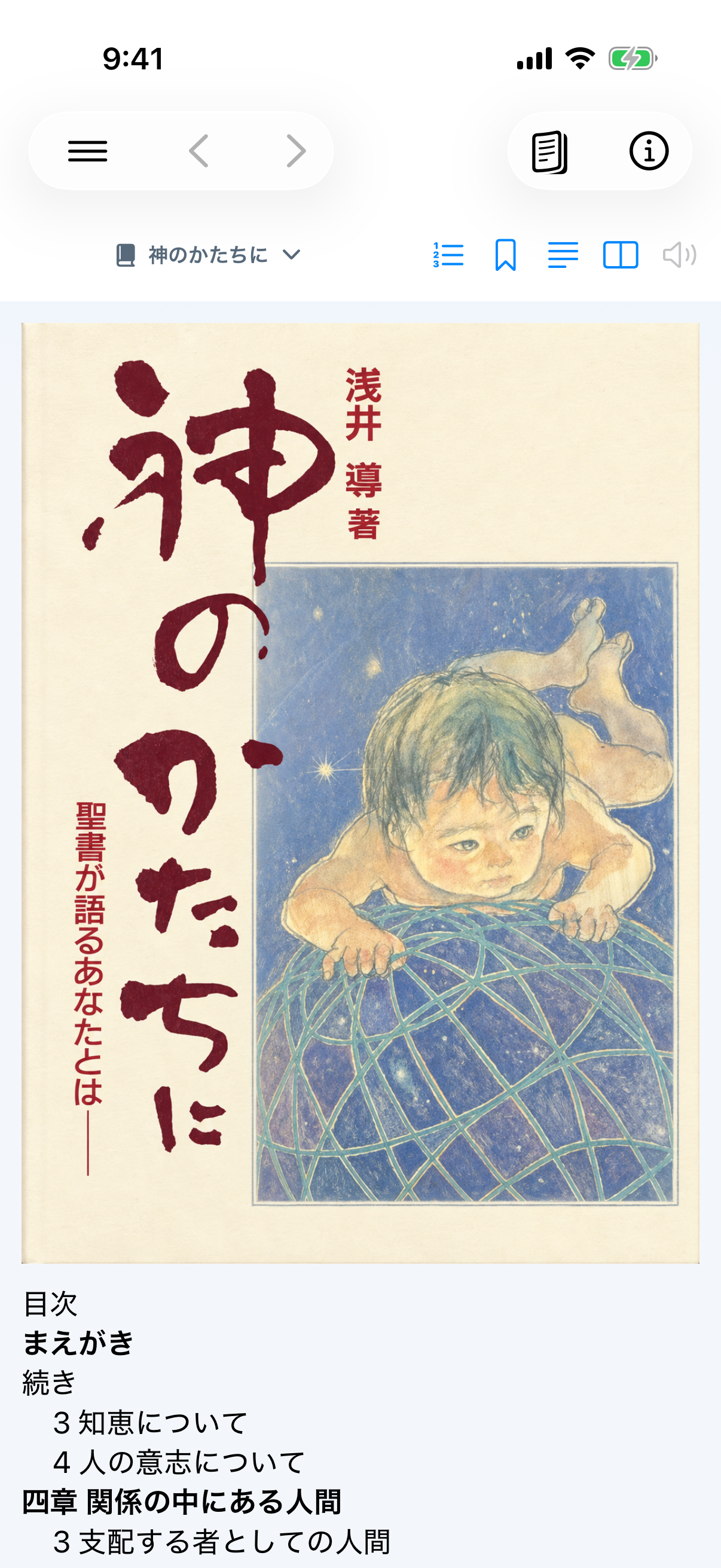
Book reader in 1.33
Version 1.33 (288) is public in the App Store. Check the version history for distribution status.
- The first book download shows progress. Wait for completion; use saved books when a connection is unavailable.
- Image of God contents, page navigation and Japanese/English split reading use improved processing. Change Japanese ruby in Display Options.
- Open Saved within the book to return to its bookmarks, notes and highlights. References are carried to an updated edition only when their location can be safely identified; uncertain old references are not silently attached to other text.
See Personal backup for saving and restoring private data. iCloud sync is not included.
Reading and sentence bookmarks in1.34 (waiting for review)
Both Image of God editions use continuous reading; original-page display mode is removed. Existing annotations, bilingual IDs and internal positions are retained.
- Select a sentence to add a bookmark, note or highlight.
- Choose the item in the book’s Saved list to verify the same text and range and open its position.
Sentence handling is limited to the same source text entry and may also split at a source line break. Sentences crossing physical pages and exact semantic sentence-by-sentence bilingual linking remain in progress. This does not establish that the intermittent text-size symptom or performance on every device is resolved. Older bookmarks are retained. Restore backups containing the new format in an updated compatible app.