Android Preview 1.36 · versionCode 38
Bible AI
Sign in to ask questions, then study the answer alongside its supporting sources.
Tap a manual illustration to open it in a new tab; use your browser’s zoom to inspect details.
These are Android screens. Labels may differ with the selected language or available content; change the app language in Settings.
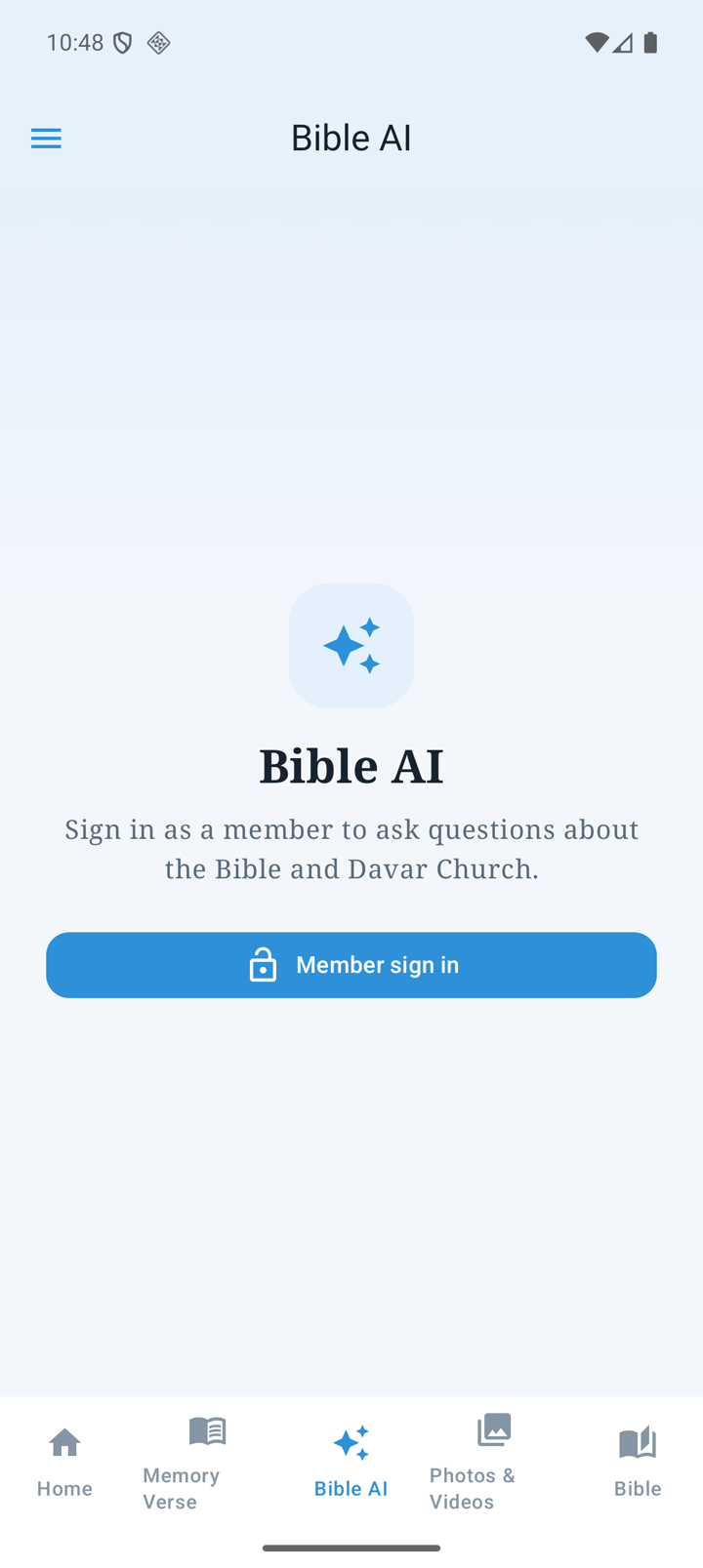
Sign in to begin
- Open the Bible AI tab. The illustration shows the genuine signed-out state.
- Use Member sign in or Settings → Account. The corresponding account capability is required.
- When the question field becomes available, ask one question and include the passage, year or seminar name you mean.
- Wait for the response. If a connection or availability message appears, follow that message.
Read the answer and evidence
- Check the Sources under an answer and compare with the source material or Bible text.
- Expand Supporting excerpts when offered.
- Long-press to select/copy text. The conversation actions also offer Copy Conversation and Share Conversation.
- A Davar-specific question may be temporarily unavailable when relevant material is missing; that is not a finding about what the source says.
Manage conversations and history
Use the top conversation list to switch conversations or start a new one. Deletion requires confirmation. Verified members can sync conversations across their devices. Turning off Settings → Bible AI → Save chat history removes local conversations and the applicable server history; an offline deletion is retried later.
Signing in as a different verified member, or with a shared account without verified email, can clear this device’s conversations. Check private information and what you need to keep before sharing a conversation or changing history settings.