Android Preview 1.36 · versionCode 38
Photos & Videos
Find Photos & Videos, browse, contribute and export stored originals. Available controls depend on sign-in and permissions.
Tap a manual illustration to open it in a new tab; use your browser’s zoom to inspect details.
These are Android screens. Labels may differ with the selected language or available content; change the app language in Settings.
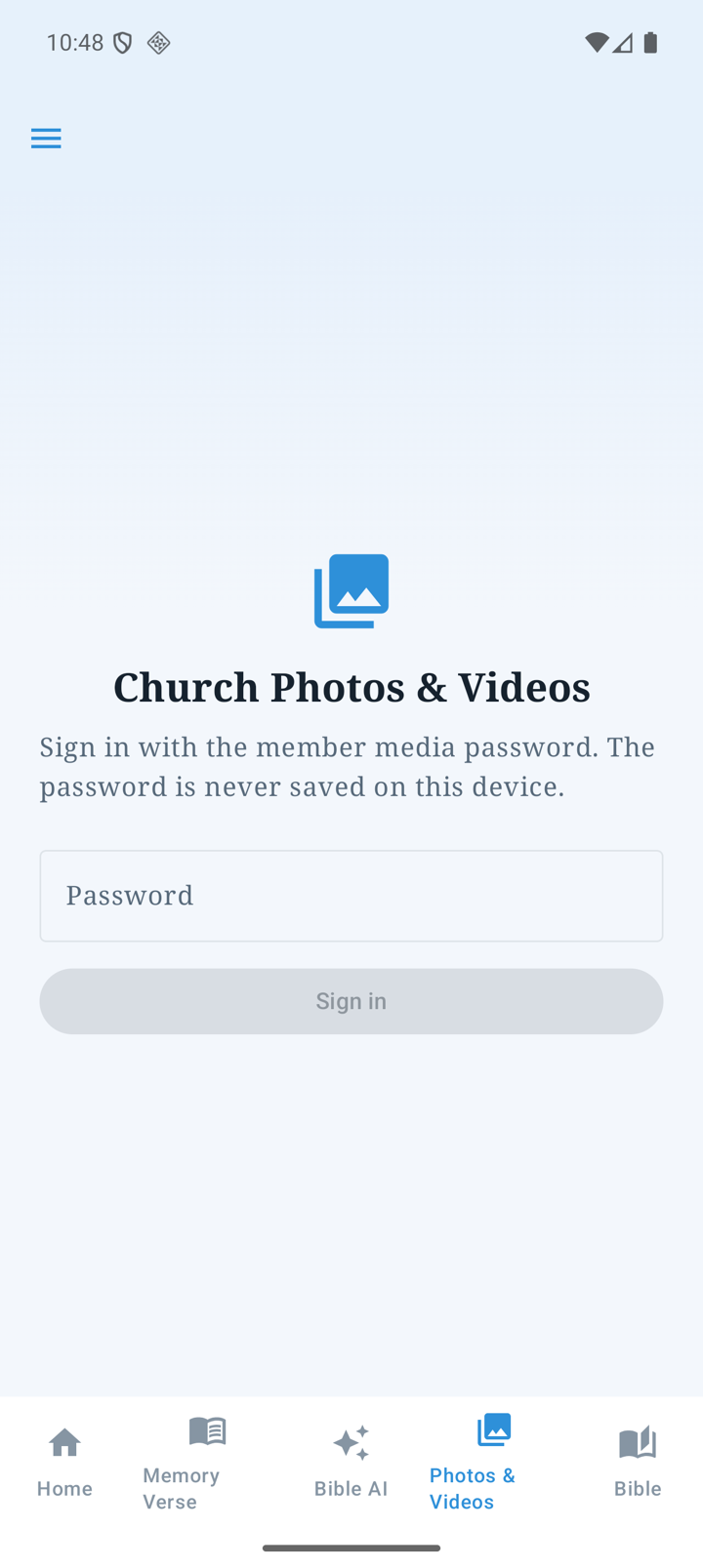
Open Photos & Videos
- Open the Photos & Videos tab, or Menu → Media → Church Photos & Videos.
- The illustration is the signed-out entry. If sign-in is requested, use the authority supplied by the church.
- In the available Public gallery, select an item and use the offered tag, photo/video or date filters.
- Open a photo to enlarge it or use the video controls to watch. Landscape viewing fits the available viewing area.
Contribute files or shared links — permission required
- Open the contribution screen and read the sharing/publication notice. Choose only material you may share.
- Choose existing Photos, Videos or Files, or enter a public share link in Import from cloud. The app does not directly launch the camera.
- Supported shares include iCloud Photos/shared albums, OneDrive, Amazon Photos and Dropbox. Check the provider’s sharing requirements and expiry too.
- Start the transfer and keep the app open until the batch is queued. Check the queue/failure result and retry as needed. Closing the screen does not cancel already queued work.
YouTube versus a stored original
Authorized contributors can add a public YouTube link. A YouTube-only item shares its watch link and has no downloadable stored original. An uploaded video may also have a YouTube source; playing/exporting its stored original is a separate choice. Source management requires administrator permission.
Save or share originals — where permitted
- Open an item for which original download/share is offered and choose the required action.
- Watch transferred bytes and the percentage when the total is known; use Cancel transfer if no longer needed.
- Choose the destination in Android’s save/share dialog when offered.
- Check the final result. Limits are 10 GiB per original and 20 GiB per batch, and the destination needs enough free space.
Use publish/private, tagging, rotation, deletion and duplicate-candidate controls only when your permission makes them available. Preview duplicate candidates first; These are not duplicates dismisses the candidate without deleting it.