Android Preview 1.36 · versionCode 38
Events & More
Use the menu for official events, JBS schedules, church information and linked media.
Tap a manual illustration to open it in a new tab; use your browser’s zoom to inspect details.
These are Android screens. Labels may differ with the selected language or available content; change the app language in Settings.
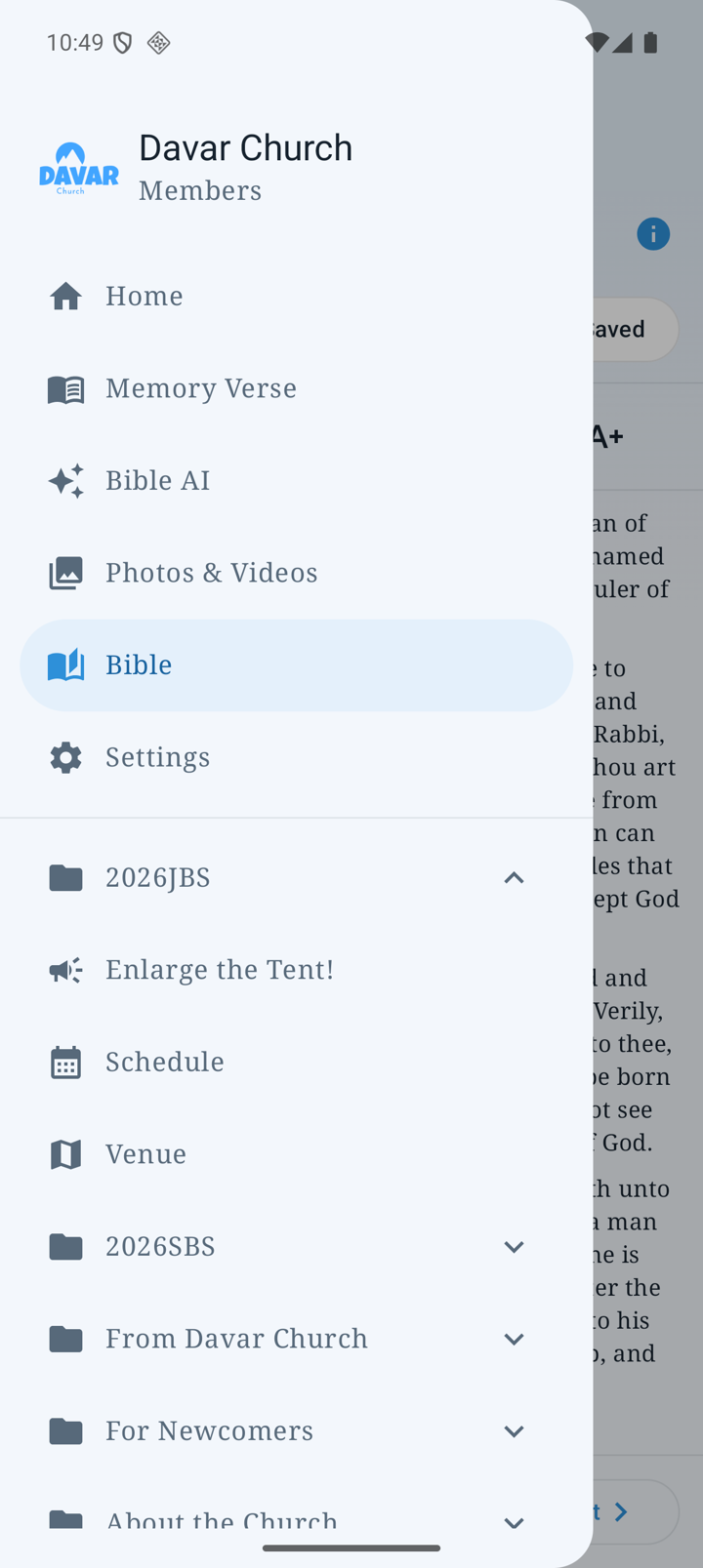
Open events and schedules
- Open the menu and choose Events or the relevant event group.
- Choose information, location or Schedule. Home → Upcoming Events also opens official calendar articles.
- Check the date, location and time zone, and reload linked pages when current information is needed.
- Return with Android Back or the app’s Back control.
Check JBS schedule time zones
- Open 2026JBS → Schedule.
- Choose JST (Japan time) or PDT; the initial view is JST.
- Move through/zoom the PDF and use Share to share its original file.
- The bundled schedule PDF is available offline. Check current church announcements for last-minute changes.
Other menu destinations
- For NewcomersRead church introductions and the Ready to Receive Jesus guide.
- Church information / Davar NetworkOpen regional information and official pages.
- MediaFind live streaming, official YouTube, teaching series and Cornelius Fellowship.
- Store / LinksOpen products and official linked pages. A website may require its own sign-in or process.
When a linked page asks you to sign in
- Open Media → Cornelius Fellowship.
- If the website requests its own authorization, use the information supplied by the church. Website sign-in is separate from the app account.
- If loading fails, check connectivity and use Retry/reload.
- Check the result of any website action before leaving. Returning in the app does not undo a website operation.
See Photos & Videos for albums and Settings for notifications and updates.