Android Preview 1.36 · versionCode 38
Memory Verse & Cards
Read the weekly verse and browse/share Verse Cards. Posting and editing depend on your assigned capabilities.
Tap a manual illustration to open it in a new tab; use your browser’s zoom to inspect details.
These are Android screens. Labels may differ with the selected language or available content; change the app language in Settings.
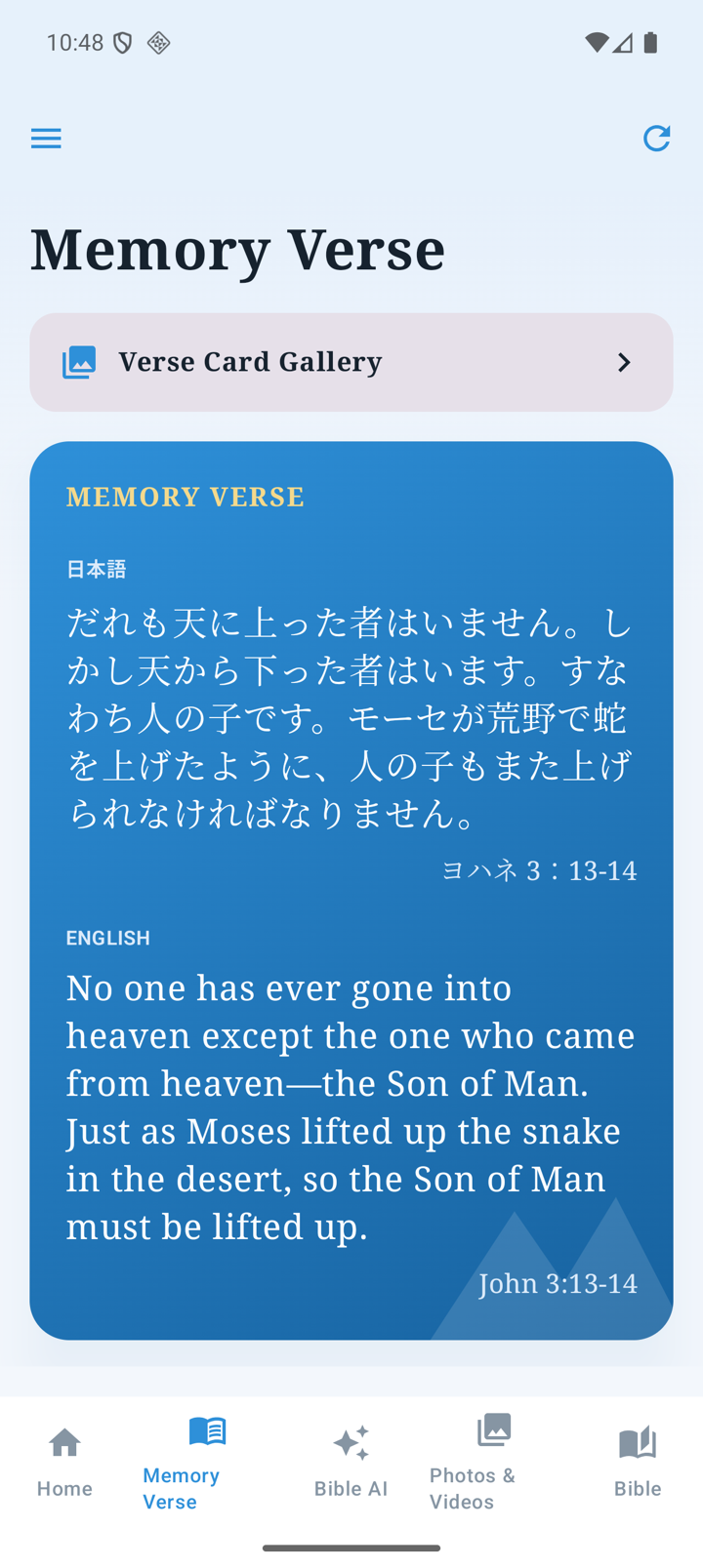
Weekly verse and gallery
- Tap Memory Verse in the bottom bar.
- Read the weekly verse and open Verse Card Gallery.
- Choose 1–7 columns and tap a card to view it. A slideshow is also available.
- A card opened from Home lets you move through that set; Show Gallery takes you to the gallery.
- Where sharing is offered, choose a destination to share the image.
Upload a card — upload permission required
- Sign in under Settings → Account and check for the Verse card upload capability.
- Use the gallery’s upload button, enter a title and choose one completed card image.
- Choose Blogger labels. Include みことばカード to put it in the card gallery. The device may reuse your last selected labels.
- Management permission also allows a comment. Review the content, tap Upload once, and check the gallery after completion.
Edit or rotate after upload
With Verse card management, open Edit in the card detail to change its title/labels (for Blogger-managed cards) and comment. Comments allow up to 500 characters. Use the separate rotate-left/right controls; read the confirmation before deleting. If another device updated it first, review the reloaded information.
If posting/management is unavailable, check Settings → Account. Sign In Again can refresh assigned permissions; ask the administrator if permission is missing. Choose only an image you are allowed to share.