Android Preview 1.36 · versionCode 38
Settings & Updates
Set language, text size, account, branches and notifications, then keep the app updated with the official APK.
Tap a manual illustration to open it in a new tab; use your browser’s zoom to inspect details.
These are Android screens. Labels may differ with the selected language or available content; change the app language in Settings.
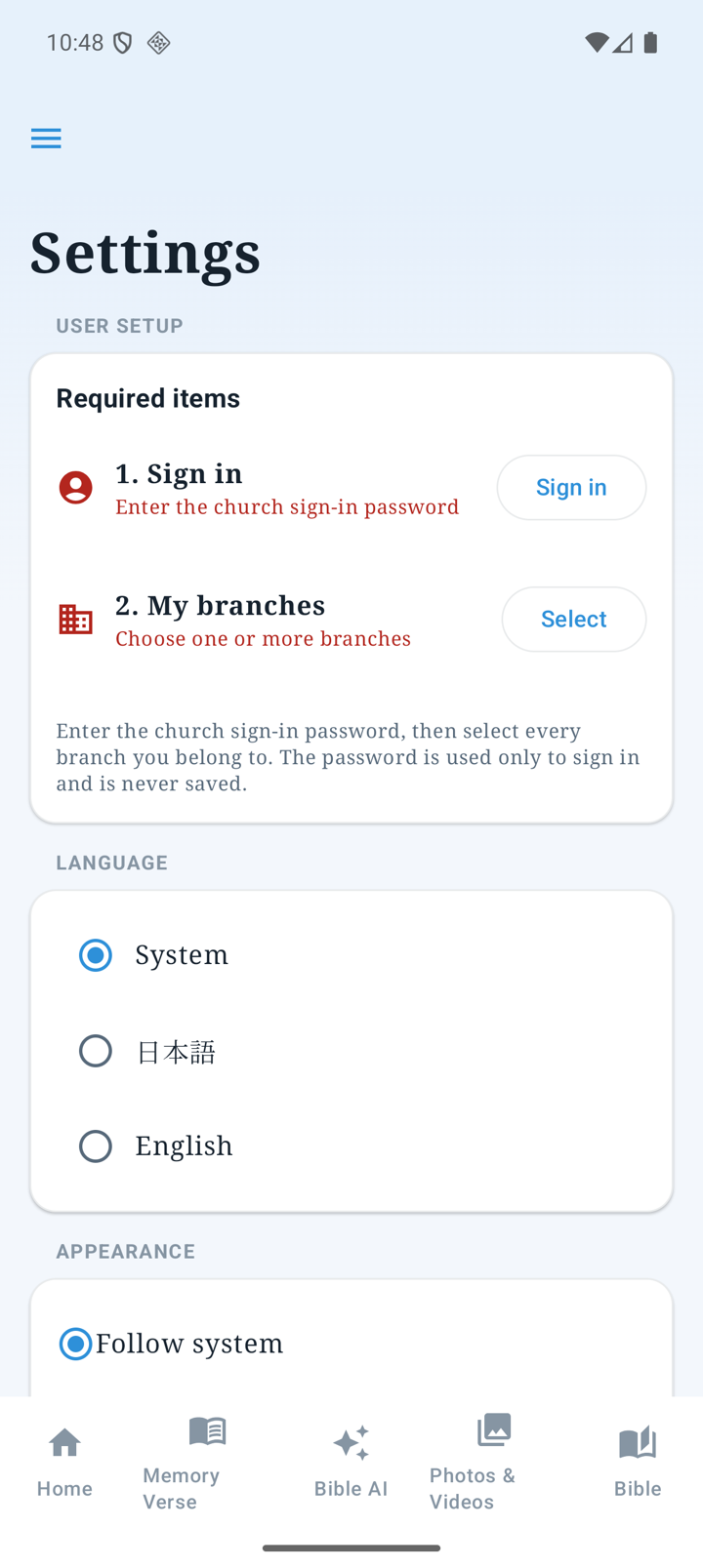
Adjust the app for you
- Open Settings from the menu.
- Choose System, Japanese or English language and System, Light or Dark appearance.
- Adjust the ten-step Text Size slider and check its sample/percentage. Reset to Default restores the initial size.
- For member tools, sign in under Account and check your granted capabilities and My branches.
Account, permissions and branches
Posting and administration follow your account capabilities. Sign In Again refreshes assigned permissions. Administration entries for notices/orders appear only where authorized. My branches supports branch notifications and prioritization. Before signing out, check warnings about unconfirmed operations or private drafts.
Set notifications
- When Android asks for notification permission, allow it if you want alerts. Notification Settings also opens the OS settings.
- Choose Administrator announcements and Daily app and site updates separately. The digest runs once daily at 8:00 AM Los Angeles time.
- Check My branches and this device’s registration result. Use Retry Push Registration when a failure offers that action.
- Power saving, connectivity and OS notification settings may delay display. Registration/provider acceptance is different from proof that an alert appeared.
Update using the APK
- Check Settings → Updates or open the official Android Beta page.
- Verify the primary software.cblh.software page and version, then download the APK. This is not Google Play distribution or automatic in-app installation.
- Install over the existing app. Preserve data by not uninstalling first or clearing app data.
- If a signature mismatch/invalid-package warning persists, stop and contact Support with the version and exact message.
Offline content and support
Offline Content shows storage use and offers a confirmation before clearing saved content. This is separate from uninstalling the app. Bible AI history deletion is a different setting and can affect server history for verified members. Use Support and provide the version, steps and error.